OBS Guide
How to add an animated background in OBS
Add the loop as a Media Source, tick Loop, untick Restart playback when source becomes active, then fit it to the canvas and lock it. That is the whole setup, and it works the same for a single loop or a full stream kit.
Step by step
Set up a looping background in OBS
- 01
Download a loop or a stream kit
Buy or download a loop from the gallery, or a full stream kit for matching Starting Soon, BRB, Offline and Ending screens. Files arrive as MP4 (H.264), ready for OBS.
- 02
Add a Media Source
In OBS, click the + under Sources, choose Media Source, and give it a name like "Background".
- 03
Select the file and tick Loop
Browse to the downloaded MP4, then tick Loop and untick Restart playback when source becomes active. This is the setting that makes it run continuously instead of stopping after one play.
- 04
Resize it to fill the canvas
Right-click the source, choose Transform > Fit to screen, so the loop fills the full 1920x1080 canvas behind your camera or overlays.
- 05
Lock the source in place
Right-click the source and tick Lock, so it cannot be dragged or resized by accident mid-stream.
- 06
Repeat per scene for a full kit
For a stream kit, make one scene per screen (Starting Soon, BRB, Offline, Ending Soon) and repeat steps 2 to 5 with that screen's file. Switch scenes as your stream moves through each state.
Skip the manual setup
One import, all four scenes done
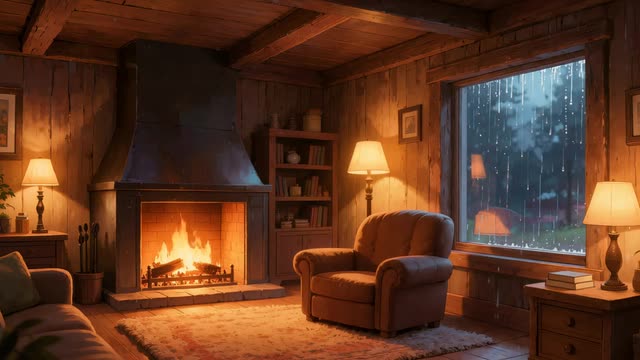
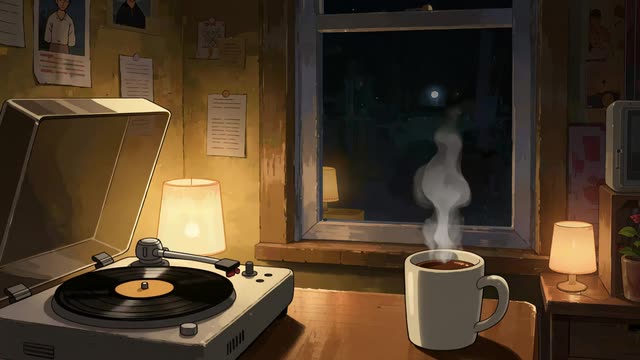
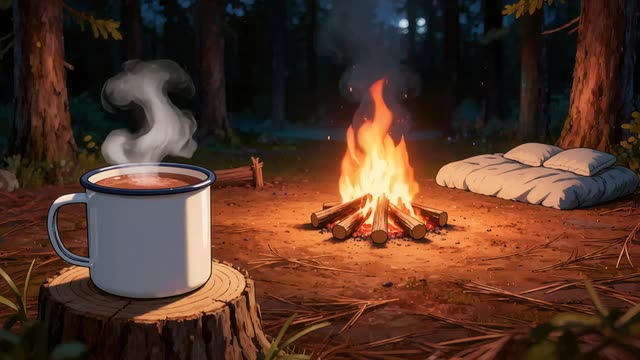
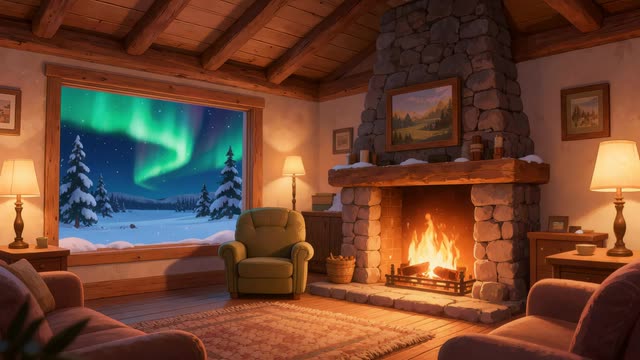
Every stream kit includes a ready-made OBS scene collection: Starting Soon, BRB, Offline, Ending Soon and a clean background, already wired up with Loop ticked.

FAQ
Frequently Asked Questions
Set up your stream's background once
Stream kits are $14.99 each, paid once. Single library loops are $4.99.