Lofi
Set Up a Starting Soon, BRB, Offline and Ending Soon Kit in OBS
Build a full stream kit in OBS: one scene each for Starting Soon, BRB, Offline and Ending Soon, saved in its own scene collection with hotkeys to switch.
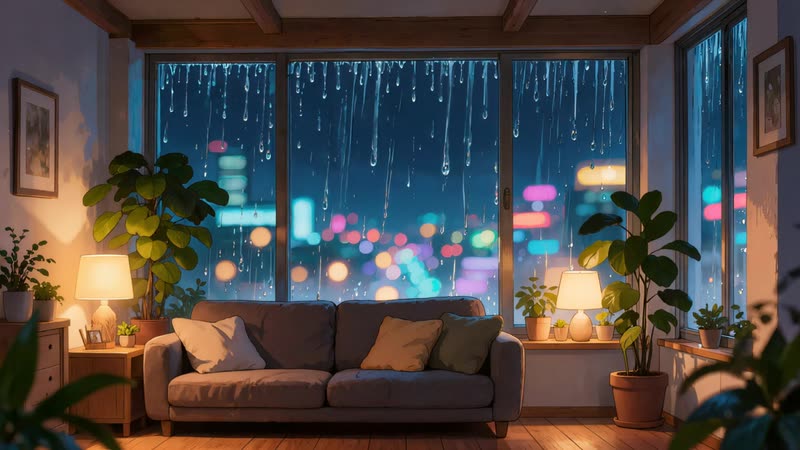
A stream kit is a set of screens that match. You show Starting Soon while people arrive, BRB when you step away, Ending Soon as you wrap up, and Offline at the very end. In OBS, each screen becomes its own scene. Once the scenes are built, switching between them is one click or one key.
Start a scene collection
A scene collection is a saved set of scenes and sources. Keeping your kit in its own collection means you can try a new look without breaking your main setup. Open the Scene Collection menu at the top of OBS and choose New. Name it after the kit. If you want your current gameplay and camera scenes as well, choose Duplicate instead and add the kit scenes to the copy.
Build the four screens
Repeat these steps for each screen:
- In the Scenes dock, click + and name the scene: Starting Soon, BRB, Offline or Ending Soon
- In the Sources dock, click +, choose Media Source, and select that screen's MP4
- Tick Loop, untick Restart playback when source becomes active, and click OK
- Right-click the source, open Transform, and choose Fit to screen
- Add anything else the screen needs on top, such as a Text source for a countdown or your chat
Use the empty screen for your own layout
The labelled screens already carry their title, so they work as they are. The empty screen is the same scene with no text on it. Use it as the base for your main talking or gameplay scene, and your stream keeps one look from start to finish rather than switching style when the game starts.
Switch scenes with hotkeys
Open Settings, then Hotkeys. Each scene has a Switch to scene entry. Give each one a key you can reach without looking. If you want to line up the next screen before viewers see it, turn on Studio Mode. The left side becomes a preview you can change freely, and Transition sends it live.
Keep it portable
Choose Export from the Scene Collection menu to save the collection as a file. It is a good backup before a big change. Note that the export stores the path to each MP4, not the video itself. Keep the loops in one folder, and if you move to a new PC, copy that folder too and reselect the files if OBS cannot find them.