Guide
How to use looping worship backgrounds in ProPresenter, EasyWorship and OBS
Download a silent MP4 loop, add it to your presentation software's media bin, set it to loop, then put your lyrics on top. Pick slow, low-contrast scenes so the words stay readable from the back row.
Updated
What makes a good worship background?
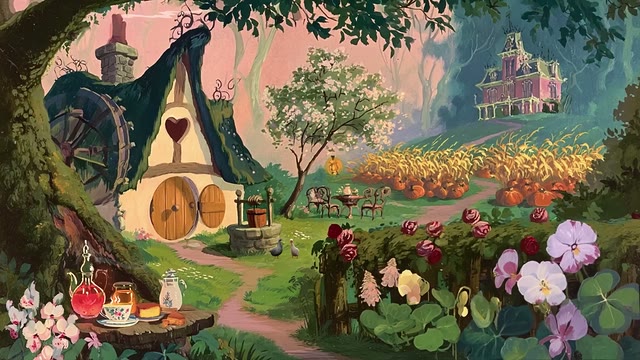
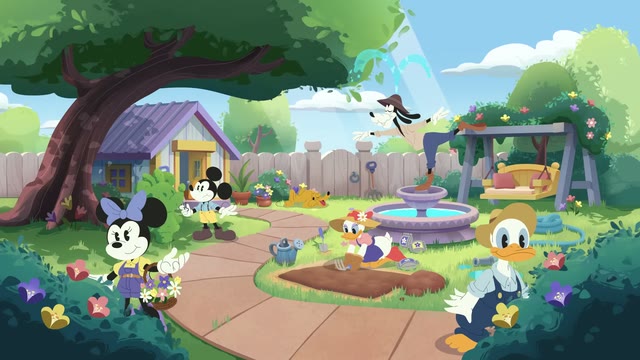
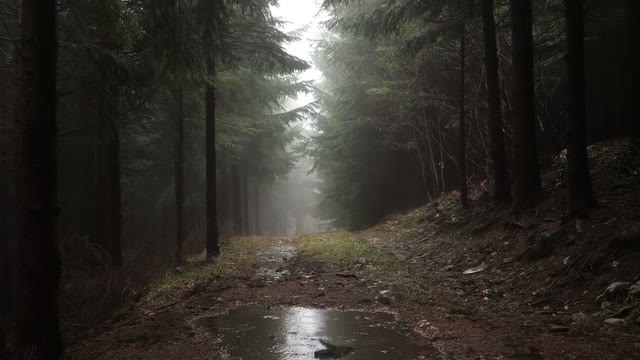
A worship background sits behind lyrics, Bible verses and announcements, so it should support the words, not compete with them. The best loops have:
- slow, even movement, such as drifting clouds, candlelight or soft light rays;
- low contrast in the middle of the frame, where your text sits;
- no sound, so they never clash with the band;
- a clean loop, so the scene never jumps mid-song.
ProPresenter
- Download the MP4 and save it in a shared Media folder that every operator's computer can see.
- Drag the file into the Media bin.
- Right-click the clip, open Inspector and set Playback to Loop.
- Drag the clip onto a slide, or set it as the background for a whole playlist so every song uses it.
- Turn on a text shadow or a dark overlay at about 30% if the words feel hard to read.
EasyWorship
- Open the Media tab, choose Videos, then Import and pick the MP4.
- Drag it onto a song or onto the Live output as a background.
- In the video properties, tick Loop.
PowerPoint and Keynote
- Insert the MP4 on a slide with Insert, Video.
- In Playback, choose Start automatically and tick Loop until stopped.
- Send it to the back so your text boxes sit on top.
OBS for livestreamed services
Add the loop as a Media Source with Loop ticked, put it at the bottom of your scene, and place your lower thirds or lyrics above it. Our OBS guide has every step.
Tips for readable lyrics
- Use bold, sans-serif type at a large size.
- Keep text in the centre third of the screen, away from busy edges.
- Choose a darker loop for white text, or a lighter loop for dark text.
- Test from the back of the room before Sunday.
Frequently asked questions
Can our church use these loops for free?
Yes. Every loop is a free HD download after a quick Google sign-in. The licence covers church and ministry use, including livestreams.
Do we need to credit InfinityLooper?
No. Credit is appreciated, for example a link in your livestream description, but it is not required.
Where can we find more church screen loops?
See our worship backgrounds collection and event screen loops.