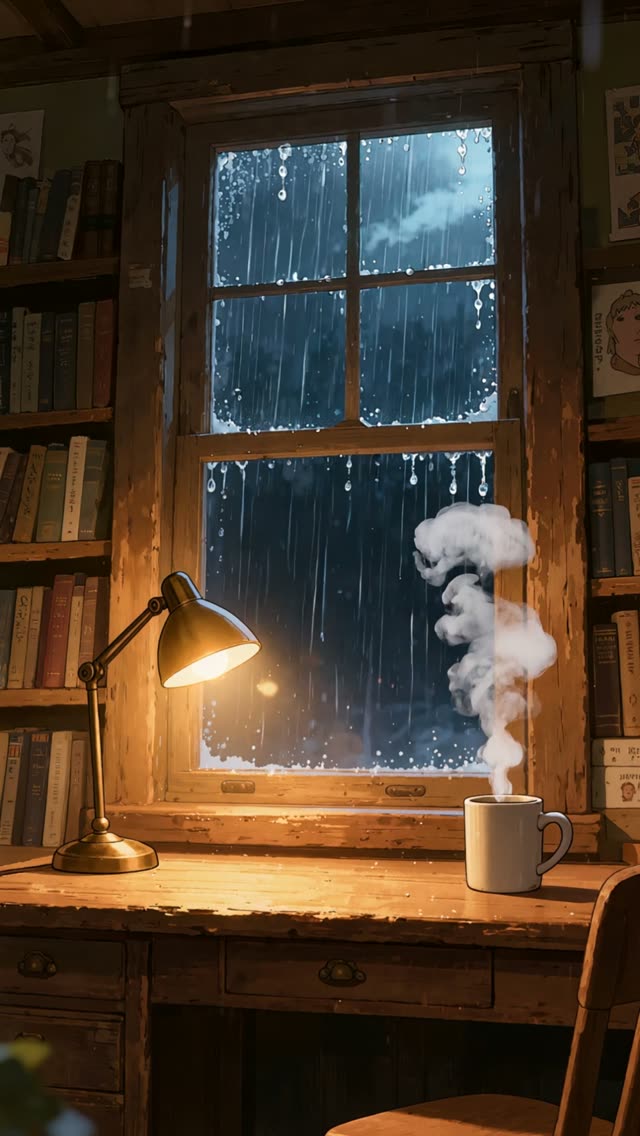
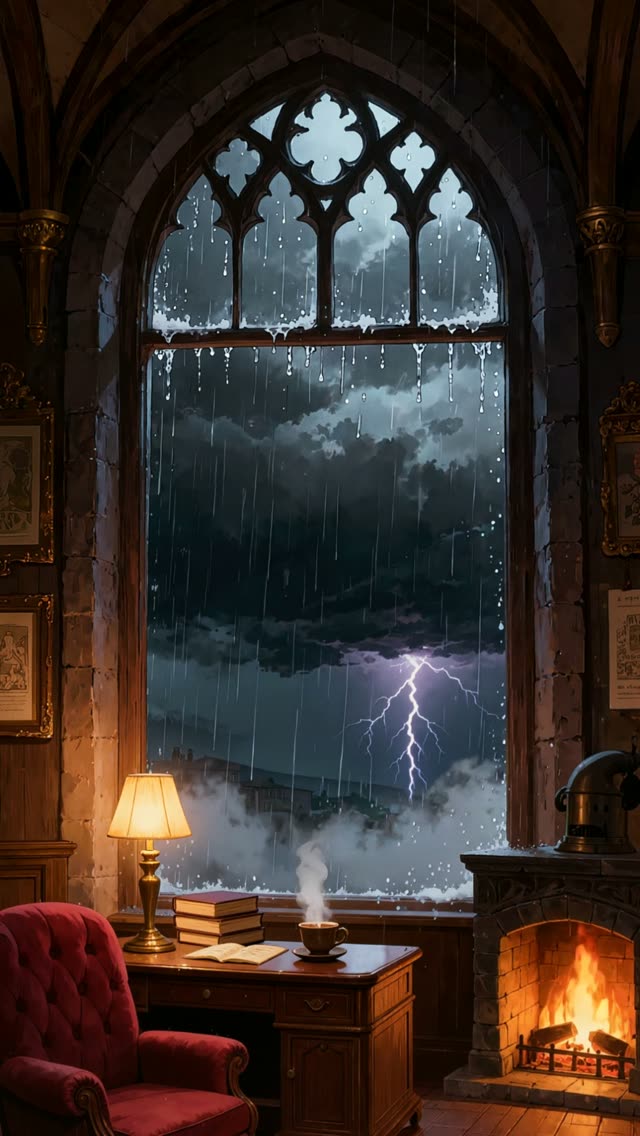
Guide
How to use a video background on TikTok, Reels and Shorts
Save a vertical MP4 loop to your phone, open TikTok's Effects, choose Green screen video and pick the file. In CapCut, add the loop as the main clip and place yourself or your text on top as an overlay.
Updated
What you need
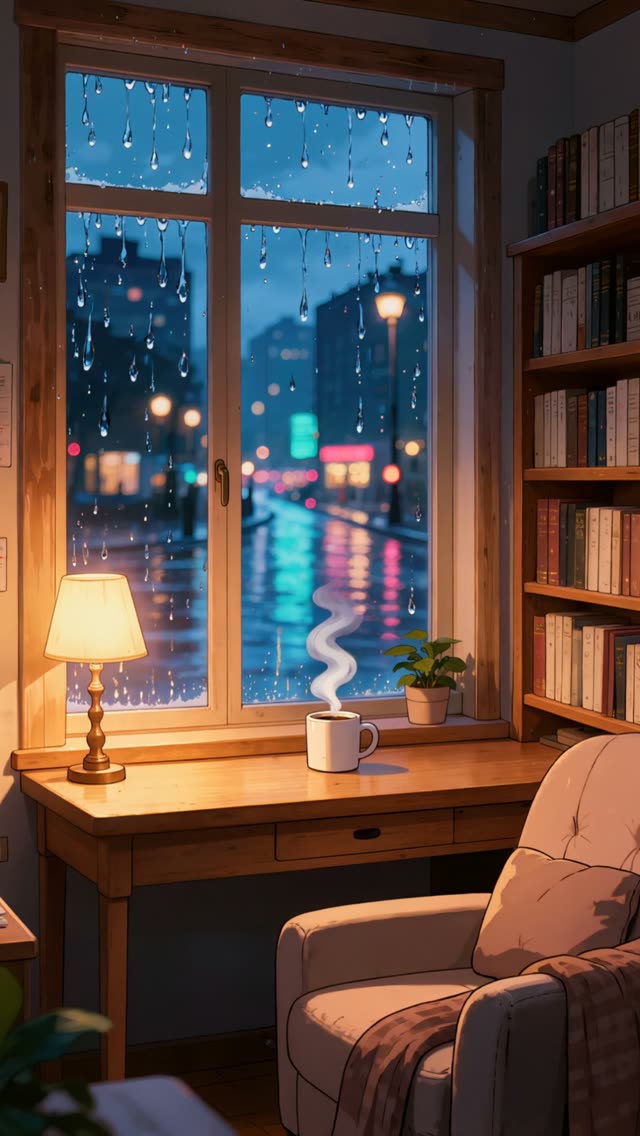
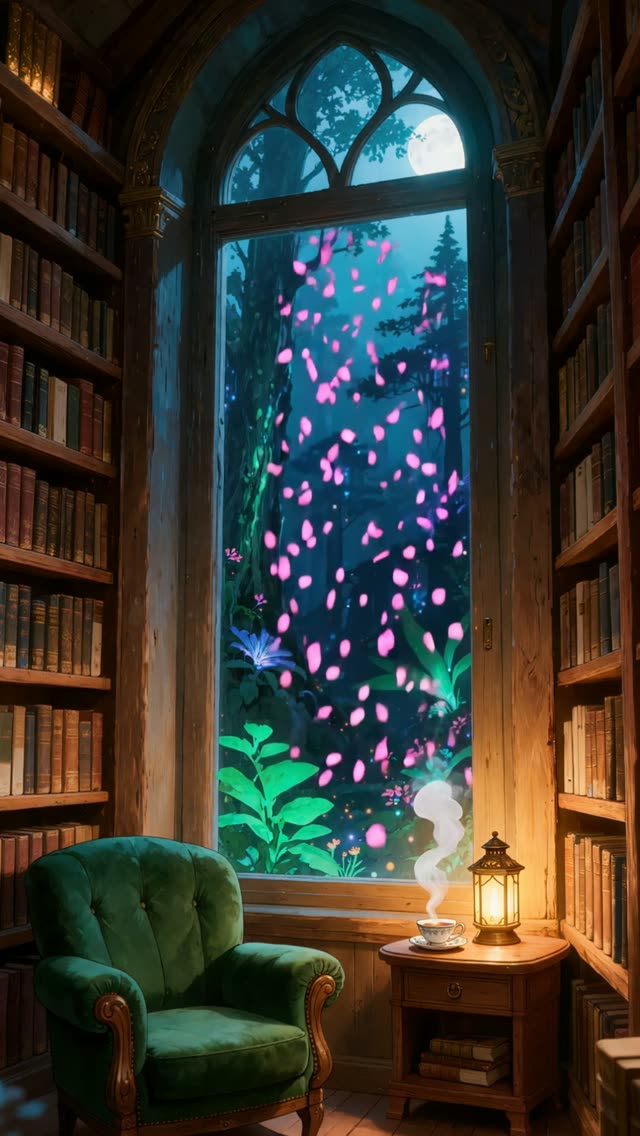
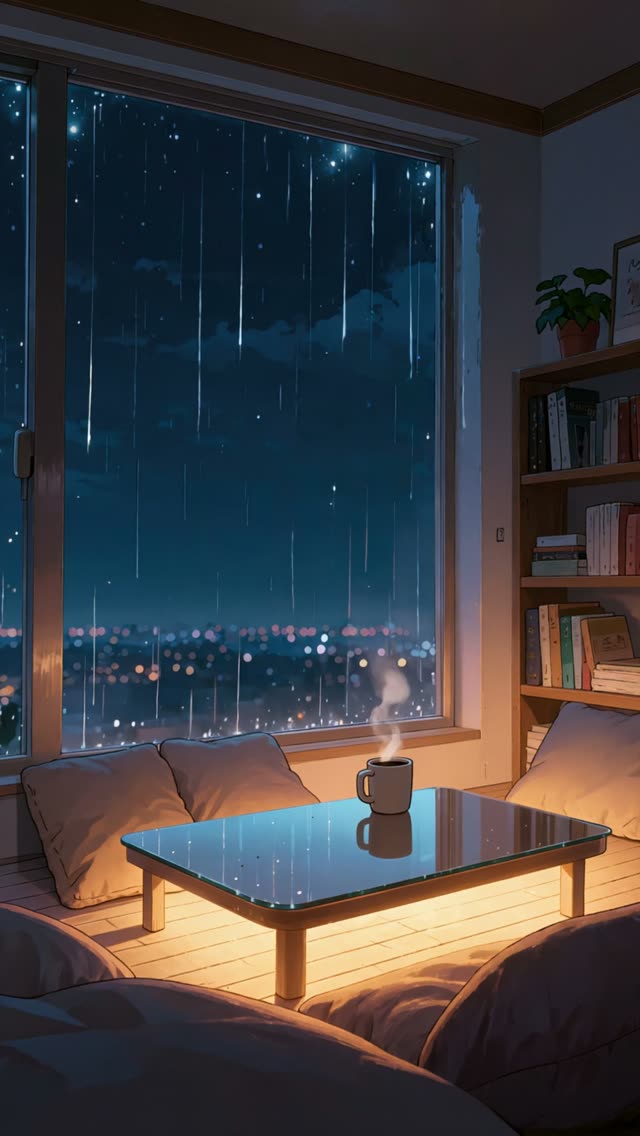
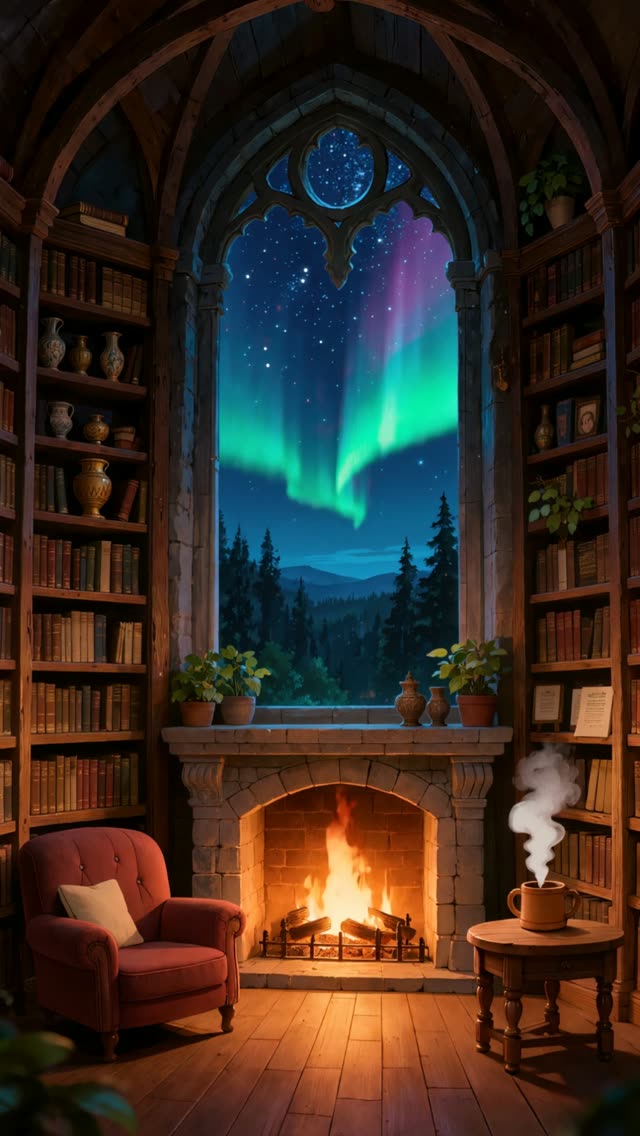
- A vertical 9:16 MP4 loop saved to your phone's camera roll. Our TikTok video backgrounds are made for this shape.
- The TikTok, Instagram or YouTube app, or CapCut for editing.
TikTok green screen
- Open TikTok and tap + to open the camera.
- Tap Effects, then search for Green screen video.
- Pick the loop from your camera roll. It plays behind you.
- Record as normal. The loop repeats for as long as you film.
CapCut
- Start a new project and add the loop as the first clip.
- Tap Overlay, then Add overlay, and pick your talking-head clip.
- Select the overlay and use Remove background or Chroma key if you filmed on a green screen.
- Add captions or text on top, then export at 1080 by 1920.
Instagram Reels and YouTube Shorts
Both apps accept a vertical MP4 as the main clip. Add the loop first, then add text, stickers or a voice-over. For a quote or lyric video, a calm loop with your words on top is often all you need.
Tips
- Pick a loop with space in the middle third for your face or text.
- Keep the loop silent and add trending audio inside the app.
- A short clip that repeats smoothly keeps viewers watching it again.
Frequently asked questions
Are the backgrounds free?
Yes. Every loop is a free HD download after a quick Google sign-in.
Can I use them on a monetised account?
Yes. The licence covers personal, commercial and client work. Credit is appreciated but not required.