22 guides
Setup guides
Step by step instructions for the apps and screens people use the loops on, from a stream scene to the TV in the lounge.
 Streaming
Featured guide
How to add a looping video background in OBS Studio and Streamlabs
Add the MP4 as a Media Source, tick Loop, and drag it to the bottom of the source list. The settings below keep it smooth when you switch scenes.
Read the guide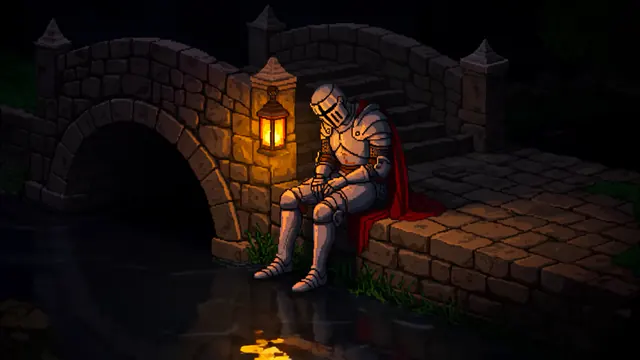 Streaming
How to build animated starting soon and BRB screens in OBS
A starting soon, BRB or ending screen in OBS is a scene built from a looping background video, a text source and a countdown, switched to with a hotkey so your stream never shows a blank screen. Set up the scene once, assign a hotkey, and reuse it every stream.
 Streaming
How to add a looping background to a scene in Streamlabs Desktop
In Streamlabs Desktop, click the plus button in Sources, choose Media File, click Add Source, browse to your MP4 under Local File and tick Loop, then drag the source to the bottom of the list so your camera and alerts sit on top.
 Streaming
How to set up a VTuber background in OBS
Add a looping animated background behind your VTuber model by placing it as a source below your Game Capture or window capture layer in OBS, keeping the background calm so it does not compete with your model.
 Video calls
How to use a video as your background in Google Meet
Google Meet has no upload for your own video background. Its panel has blur, Google's backgrounds, generated ones and a personal image, so to show a looping MP4 you play it in OBS Studio and choose OBS Virtual Camera as your camera in Meet.
 Video calls
How to use a video background in Teams with OBS
Teams does not accept a custom MP4 through Add new in background effects. To use a moving video scene, loop the file in OBS Studio and select OBS Virtual Camera as your Teams camera.
 Video calls
How to add a video background in Zoom
In the Zoom desktop app open Settings, then Background and effects, click the plus and add a video. Zoom takes MP4 or MOV files from 360p up to 1080p, so landscape 1080p clips fit exactly.
 Desktop and phone
How to set a video as a live wallpaper or lock screen on iPhone and Android
Samsung Galaxy phones can set a saved video as the Lock screen or Home screen wallpaper from the wallpaper menu. iPhone cannot use a video file; on iOS 17 or later it plays a Live Photo briefly when the Lock Screen wakes. Pixel and most other Android phones need a live wallpaper app.
 Desktop and phone
How to set an MP4 as a live wallpaper with Lively Wallpaper on Windows
Install Lively Wallpaper from the Microsoft Store or GitHub, then drag your MP4 into the Lively window, or click Add Wallpaper and choose the file. Lively adds it to your library and plays it on a loop behind your desktop icons.
 Desktop and phone
How to set a looping video as your Mac desktop wallpaper
macOS does not support custom video files as a desktop wallpaper natively; only Apple's own aerial and landscape scenes play as live wallpaper. To use your own looping MP4, you need a third-party app that plays video behind your desktop icons.
 Desktop and phone
How to set a looping video as your phone wallpaper
Use a vertical clip. Supported Samsung Galaxy phones can use a saved video as wallpaper. iPhone uses compatible Live Photos for brief Lock Screen motion, not a continuously looping MP4.
 Desktop and phone
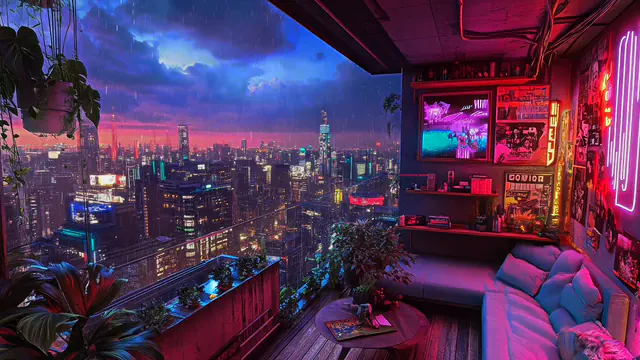
Free Wallpaper Engine loops and how to add a video wallpaper
Open the downloaded MP4 as a local video wallpaper in Wallpaper Engine. Keep the file on your PC and pause playback while other apps are fullscreen.
 Desktop and phone
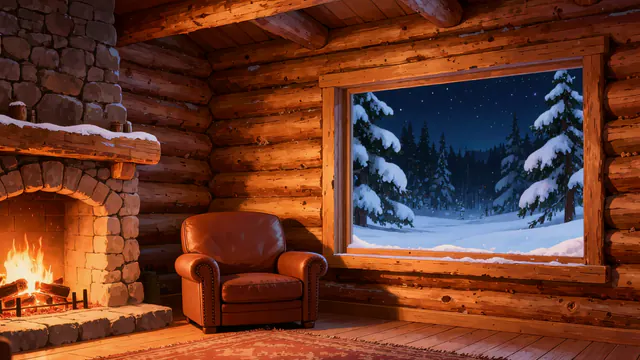
How to set a looping video as your Windows desktop wallpaper
Windows only takes still images as wallpaper, so you need a wallpaper app. Lively Wallpaper (open source, Microsoft Store) and Wallpaper Engine (paid, Steam) both play MP4 files on a loop.
 TV
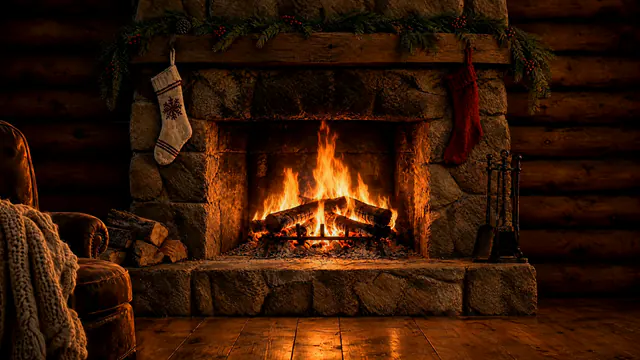
How to loop a fireplace or ambience video on a smart TV or streaming stick
On Samsung and LG TVs, play the MP4 from a USB drive in the TV's media player and turn on repeat if your model has it. On Fire TV and Google TV, play it in VLC with Repeat mode on. Apple TV has no USB playback, so send the video by AirPlay or play it in a media app such as VLC.
 TV
How to play a looping fireplace video on your TV
Most smart TVs can loop a fireplace video from a USB stick, a casting app, or Plex/VLC set to repeat; use an MP4 (H.264) file and, on OLED sets, keep brightness moderate and avoid long static sessions to limit burn-in risk.
 Presentations and worship
How to use looping worship backgrounds in ProPresenter, EasyWorship and OBS
Download a silent MP4 loop, add it to your presentation software's media bin, set it to loop, then put your lyrics on top. Pick slow, low-contrast scenes so the words stay readable from the back row.
 Presentations and worship
How to put a looping video behind a slide in PowerPoint and Google Slides
In PowerPoint, insert the MP4 on the slide, set Start to Automatically, tick Loop until Stopped and send the video to the back. Google Slides can auto-play a Google Drive video behind your text, but its help page lists no loop setting, so use a looping GIF when the background must never stop.
 Presentations and worship
How to use a looping MP4 as a motion background in ProPresenter
Add the MP4 to the ProPresenter Media Bin, open its Inspector and set Playback Behavior to Loop, then click the clip to play it under your slides or drag it onto a slide so it starts with that slide.
 Creators
How to make a meditation or sleep video with a looping background
Pick a slow, silent loop, repeat it in your editor to the length you need, add your own voice, music or nature sound, and export at the loop's own resolution. For classes, play the MP4 on repeat on a TV.
 Creators
How to set up a study with me background for focus sessions
Pick a calm, low-motion loop and play it on a second monitor, behind your Pomodoro timer, or in OBS during a study stream, using a low-power player so it doesn't compete with your study apps for CPU.
 Creators
How to use a video background on TikTok, Reels and Shorts
Save a vertical MP4 loop to your phone, open TikTok's Effects, choose Green screen video and pick the file. In CapCut, add the loop as the main clip and place yourself or your text on top as an overlay.
 Creators
Using looping video backgrounds on a monetised YouTube ambience channel
InfinityLooper loops can be used in monetised videos and streams. For YouTube, build each video around something you add yourself, such as a sound mix, a timer or a sequence of scenes.