How to put a looping video behind a slide in PowerPoint and Google Slides
In PowerPoint, insert the MP4 on the slide, set Start to Automatically, tick Loop until Stopped and send the video to the back. Google Slides can auto-play a Google Drive video behind your text, but its help page lists no loop setting, so use a looping GIF when the background must never stop.
Updated
Can a video be a slide background?
Not as a background setting. Microsoft states that PowerPoint does not support videos as slide backgrounds in any version, and that choosing a video file in Format Background gives an error. Google Slides only takes a colour or an image as a slide background.
Both apps let you get the same result another way: place the video on the slide as an ordinary object, make it fill the slide, and put it behind everything else. PowerPoint can then loop it for as long as the slide is showing. Google Slides is more limited, and the section on it below says exactly where.
PowerPoint on Windows and Mac
These steps follow Microsoft's own workaround, using the current menu names.
- Open the slide that needs the moving background.
- On Windows, go to Insert, select the arrow under Video and choose This Device. On a Mac, go to Insert, Video, then Movie from File.
- Pick the MP4 and select Insert.
- Drag the corner handles until the video covers the whole slide. A 16:9 clip matches a widescreen slide exactly.
- With the video selected, open the Playback tab. In the Start list choose Automatically, so the clip begins when the slide appears.
- On the same tab, tick Loop until Stopped. The clip now repeats until you move to the next slide.
- On the Home tab choose Arrange, then Send to Back. Your title and text boxes now sit on top of the video.
- On the Slide Show tab, clear Show Media Controls. This stops the play bar appearing if the mouse passes over the video during the talk.
Start the slide show and check that the clip begins by itself and repeats.
Microsoft's pages on inserting a video from your computer and setting the play options cover the Insert menu and the Start list. The archived Microsoft article You cannot use videos as slide backgrounds in PowerPoint gives the loop, media controls and Send to Back steps.
The same background on every slide
You can add the video to the Slide Master so it appears on each slide that uses that layout. Microsoft notes one catch: when the show moves to the next slide, the video starts again from the beginning. With a short loop of slow clouds or soft light the restart is hard to notice. With a scene that has an obvious start, it is better to keep the video on one or two key slides, such as the title and the break slide.
Embed or link
By default PowerPoint embeds the video, which means the MP4 is stored inside the presentation file. The file gets larger, but it plays on any computer you open it on. The alternative is Link to File in the Insert dialog, which keeps the presentation small and breaks if the video is moved. For a talk you will give from someone else's laptop, embed it.
Microsoft recommends MP4 files with H.264 video and AAC audio for PowerPoint. Our loops are MP4 files and need no conversion.
PowerPoint for the web
The web version can insert a video from your device with Insert, Video, This Device, for files up to 256 MB. Microsoft's instructions for the web app stop at inserting and moving the video. If you cannot find the loop setting in your browser, open the file in the desktop app, set Loop until Stopped there and save.
Google Slides
Google Slides cannot take a video straight from your computer. It inserts video from YouTube, from a web address, or from Google Drive, so the MP4 has to go into Drive first.
- Upload the MP4 to your Google Drive.
- In Slides, open the slide and choose Insert, then Video, then Google Drive. Pick the file and click Select.
- Drag the corners so the video covers the slide.
- Select the video and click Format options in the toolbar. Under Video playback, choose Play (automatically).
- Right-click the video, choose Order, then Send to back, so your text sits on top.
Google's help page on inserting and playing video in Slides lists three play settings: on click, automatically and manual. It does not list a setting that repeats the video. Look in the Video playback section of your own Format options panel. If a loop option is there, tick it. If it is not, the video plays through once and stops on the slide.
That leaves two honest choices for Google Slides.
Use a GIF when the background must keep moving. An animated GIF inserted as an image repeats for as long as the slide is on screen, with no play settings to manage. Convert a short section of the MP4 to a GIF in a video editor, insert it with Insert, Image, stretch it over the slide and send it to the back. GIFs have fewer colours than video and large ones are heavy, so keep the clip short and the size modest, and expect a softer picture.
Use the video when the slide is only up for a short time. A title slide that shows for twenty seconds while you introduce yourself does not need a loop if the clip is longer than that. You can also join several copies of the loop end to end in a video editor before uploading, which gives you a file that runs for several minutes.
If the moving background matters for the whole talk, build the deck in PowerPoint. Its loop setting is documented and dependable.
Make text readable over video
A moving picture behind words is harder to read than a plain colour. A few habits help.
- Choose a calm clip. Slow movement and even brightness leave the words in charge.
- Put a shape between the video and the text. A black rectangle over the whole slide with its transparency raised until the video shows through darkens the scene and lifts white text.
- Use fewer words. A video background suits a title, a quote or a section break better than a dense slide of bullet points.
Which loops suit slides
A landscape 1080p loop matches a widescreen 16:9 slide. Our event screen backgrounds and stage loops page gathers scenes made for big screens behind a speaker. For a softer mood, the ambience loops page and the night sky and forest themes hold plenty of slow scenes. Every loop on our animated backgrounds page shows its resolution and length before you download.
Running worship slides instead of a talk? ProPresenter handles looping backgrounds natively. See our ProPresenter motion backgrounds guide.
Frequently asked questions
Why can't I pick a video in Format Background in PowerPoint?
PowerPoint's slide background accepts a fill, a picture or a pattern, and Microsoft confirms that video is not supported there in any version. Insert the video on the slide and use Send to Back to get the same look.
How do I make the video loop for the whole presentation in PowerPoint?
Loop until Stopped repeats the clip only while its slide is showing. To carry it across slides, place the video on the Slide Master. It will begin again from the start each time the slide changes.
Does Google Slides loop a video?
Google's help page lists three play settings and none of them repeats the video. Check your own Format options panel for a loop option. If there is none, use an animated GIF, or a longer video file made by joining copies of the loop.
Will the video make noise during my talk?
No. Our loops are silent MP4 files, so there is nothing to mute. If you use a clip from elsewhere that has sound, lower its volume on the Playback tab in PowerPoint.
Can I use these loops in a client pitch or a paid conference talk?
Yes. Downloads are free with a Google sign-in, and the licence covers personal, commercial and client work. You cannot resell the raw video file. The licence sets out the terms.
Official instructions
Free loops for this setup
Open a loop to preview it and download the MP4 with Google sign-in.
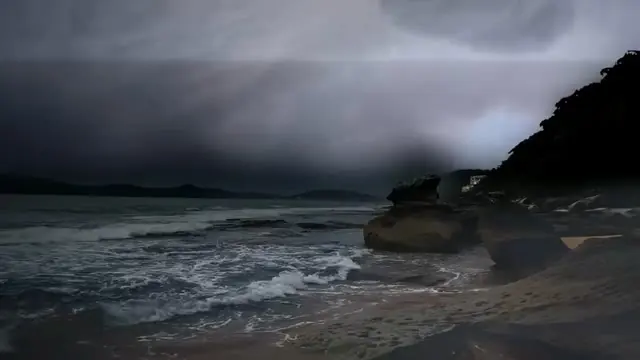
Thunderclouds over rocky surf
HD, 30 s loop

Santorini blue domes village motion background
HD, 24 s loop

Ocean waves in blue moonlight
HD, 30 s loop
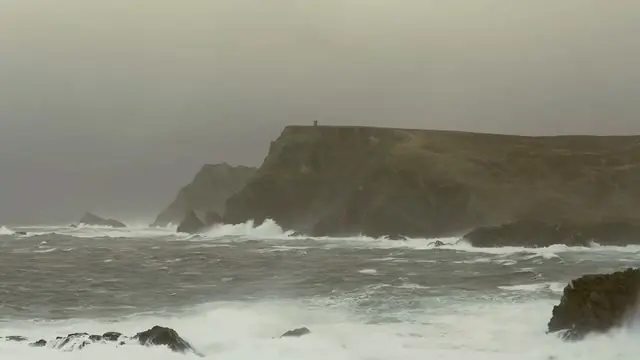
Stormy ocean coast
HD, 30 s loop
Show 8 more loopsShow fewer loops
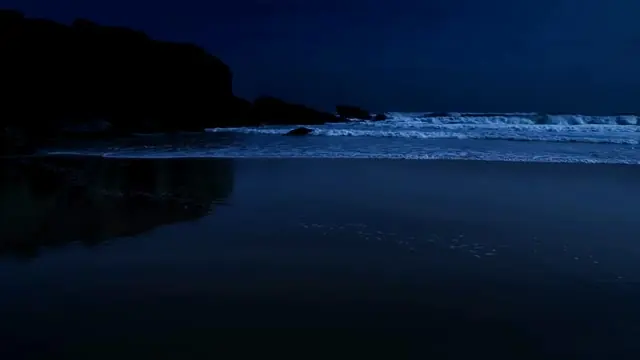
Ocean waves at night
HD, 30 s loop
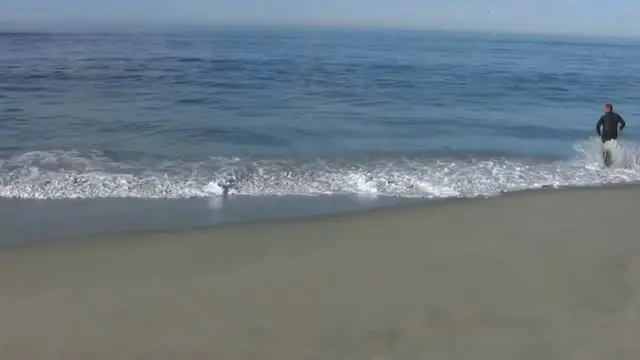
Ocean waves on a beach
HD, 30 s loop

Deep blue rocky shore at night
HD, 30 s loop
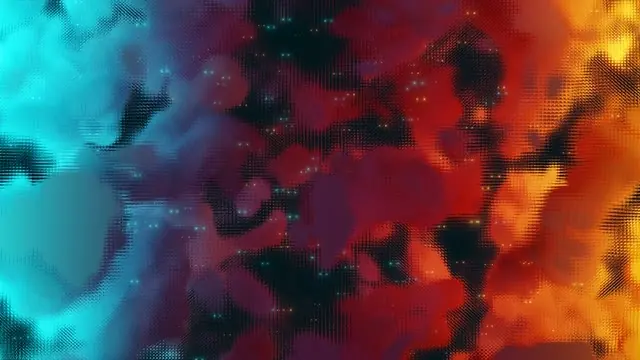
Blue and orange nebula clouds loop
HD, 12 s loop
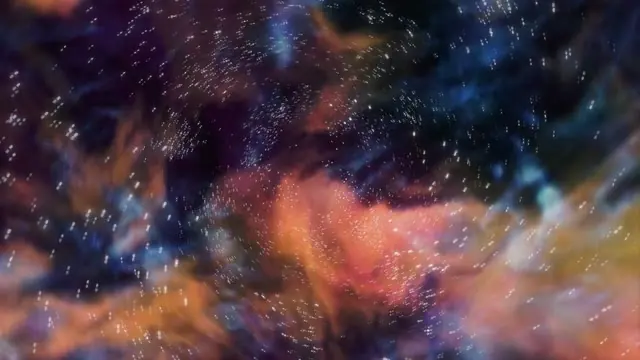
Starlit blue and copper nebula loop
HD, 12 s loop

Purple and blue nebula
HD, 30 s loop

Blue and purple space clouds
HD, 30 s loop
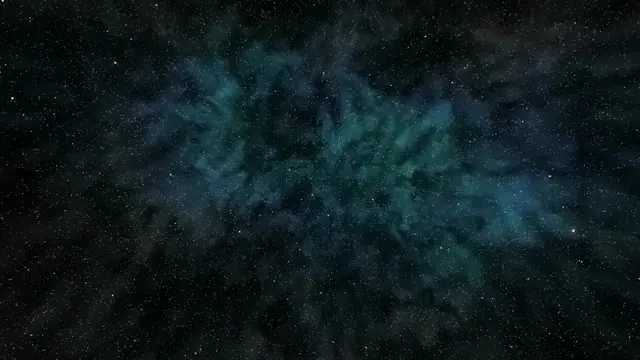
Dark cosmic clouds
HD, 30 s loop