How to loop a fireplace or ambience video on a smart TV or streaming stick
On Samsung and LG TVs, play the MP4 from a USB drive in the TV's media player and turn on repeat if your model has it. On Fire TV and Google TV, play it in VLC with Repeat mode on. Apple TV has no USB playback, so send the video by AirPlay or play it in a media app such as VLC.
Updated
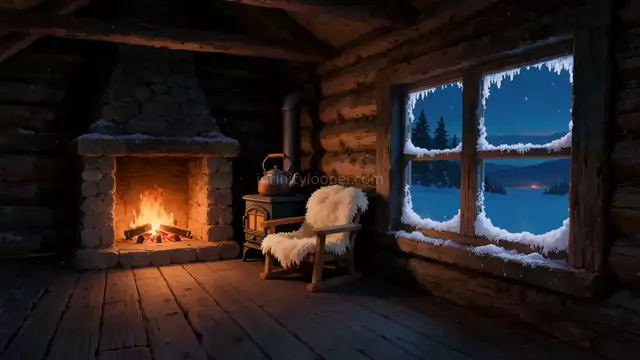
What is the simplest way to loop a video on a TV?
Copy the MP4 to a USB drive, plug the drive into the TV and play the file in the TV's own media player with its repeat option on. No network or account is involved, and nothing has to stay awake on your phone.
That works on most Samsung and LG sets. Streaming sticks and boxes are different, because most have no ordinary USB port and no built-in player for your own files. The sections below go device by device and say plainly where a method is not officially documented.
Before you start: make a longer file
Loops from this site are short by design. Most run for about 30 seconds. A computer player repeats a short file without a flicker. TV media players are not built for that. Some pause for a moment or show a control bar each time the file restarts, and with a 30 second clip that would happen twice a minute.
The fix works on every device in this guide. Open a free video editor on your computer, place the loop on the timeline many times end to end, and export one long MP4, such as 30 or 60 minutes. Clips whose product page says the first and last frames match join without a visible cut. The TV then restarts the file once or twice an evening and not every few seconds.
Our loops are silent. If you want the sound of a fire or rain, add your own audio track in the editor or play sound from a speaker.
Samsung TVs: play from USB
Samsung documents USB playback on its support site.
- Copy the MP4 to a USB flash drive on your computer.
- Plug the drive into a USB port on the back of the TV, or on the One Connect box if your model has one. Connect it directly, without a hub or extension cable.
- Press the Source button and select USB Device. You can also press Home, go to Source and choose the connected device.
- Select the video file.
- Press Enter during playback to show the control panel.
Samsung says its QLED and SUHD TVs read drives formatted as FAT, exFAT or NTFS, and that Full HD models read FAT16, FAT32 and NTFS (read only). It also warns that USB hubs are not supported and that files with a high bitrate may not play smoothly.
Samsung's support page does not describe a repeat setting, and the control differs between model years. Look for a repeat option in the control panel that appears during playback, and check the e-manual for your model if you cannot find one. If your set has none, a long file as described above is the answer. See Samsung's USB playback instructions.
LG TVs: play from USB
LG's instructions for webOS TVs follow the same pattern.
- Format the USB drive as FAT32 or NTFS and copy the MP4 to it. LG recommends a USB memory device of 32 GB or less.
- Plug it into a USB port on the back of the TV.
- Press the Input button on the remote and select USB Flash Drive. Or press Home and open the Media Player app, then select the drive.
- Choose the video to play it.
- When you are finished, press and hold Input, select the USB input and choose Eject before pulling the drive out.
LG's Media Player plays MP4 files with H.264 video, among many other formats, and LG lists the supported types and maximum bitrates on its help page for the app.
The name and place of the repeat option depend on the webOS version. On LG screens that use the older My Media app, LG gives the path as Options, Set Video Play, Repeat, On. On current TVs, open the options during video playback and look for the repeat setting there. See LG's pages on viewing files from a USB storage device and using the Media Player.
Fire TV: use VLC
Most Fire TV Sticks have no full-size USB port, so a drive cannot simply be plugged in. The dependable route is a media app, and VLC is free. VideoLAN links to the Fire TV version in the Amazon Appstore from its VLC for Android page.
- Install VLC on the Fire TV from the Appstore.
- Give VLC a way to reach the file. VLC can browse shared folders and NAS drives on your home network, so the simplest setup is to share a folder on your computer and open it from VLC. Some Fire TV models can also read a USB drive through an adapter. That depends on the model, so check Amazon's help pages for yours.
- Play the video.
- Open the player's options and turn on Repeat mode. VLC's documentation describes it as repeating the current video indefinitely.
VLC's documentation shows Repeat mode under More Options in the phone version of the Android app. The TV layout is arranged for a remote, so the option may sit in a slightly different place. See the VLC for Android video player documentation.
Chromecast and Google TV
There are two different cases here.
Casting from a computer. Any Chromecast or Google TV device can show a Chrome tab. Open the MP4 in Chrome by dragging it into a tab, or with Ctrl + O on Windows or Command + O on a Mac. Then select More at the top right, Cast, save, and share, and Cast, and choose your TV. Right-click the video in the tab and choose Loop so Chrome repeats it. The computer has to stay on and awake for as long as the video plays. Google's steps are on its page about casting from Chrome to your TV.
Playing the file on the device. Chromecast with Google TV and the Google TV Streamer run Android apps, so VLC with Repeat mode works as it does on Fire TV. VLC supports Android TV and can open shared folders on your network. Getting a file onto the device by USB is possible but awkward. Google's own page says it needs a USB-C hub with a power delivery port and a suitable charger, that the device will prompt you to reformat the drive, and that the method is not intended for general use and is not guaranteed to work in every setup. Reformatting erases a drive, so use an empty one. See Google's page on moving files to and from a Chromecast with Google TV or Google TV Streamer.
For most people, VLC reading a shared folder over Wi-Fi is less trouble than the USB route.
Apple TV: AirPlay or a media app
Apple TV has no way to play a file from a USB drive. You have two options.
AirPlay from an iPhone or iPad. Save the video to Photos on the phone, then follow Apple's steps:
- Connect the iPhone and the Apple TV to the same Wi-Fi network.
- Open the video. In Photos, tap the Share button, then AirPlay.
- Choose your Apple TV from the list.
The same steps work with a smart TV that supports AirPlay. Apple's page on streaming video with AirPlay does not describe a repeat control, so plan on the video ending when the file ends. This is where a 60 minute file earns its keep. The phone also has to stay nearby and connected.
VLC on the Apple TV. VLC for Apple TV is free and needs tvOS 11 or later. VideoLAN says it plays files from Windows shares and other network sources and has a web interface for sending playback from another device. That keeps the video on the Apple TV side, with no phone involved once it is playing. See VLC for Apple TV.
Which method should you pick?
- You have a Samsung or LG TV with a USB port: USB playback. It has the fewest parts.
- You have a Fire TV or Google TV device: VLC with Repeat mode, reading a shared folder.
- You have an Apple TV: AirPlay for an evening, VLC for a permanent setup.
- You only have a basic Chromecast: cast a Chrome tab from a laptop.
Whichever you use, set the TV's sleep timer if you tend to fall asleep in front of it. On OLED sets, moderate brightness and a scene that keeps moving are kinder to the panel than a bright, static picture. Our older fireplace on TV guide goes into burn-in and Plex in more detail.
Where to find loops for a TV
A 1080p landscape MP4 plays on nearly any TV and looks sharp from a sofa. Our fireplace theme is the place to start for a hearth scene. The cosy backgrounds and ambience loops pages cover warm rooms, windows and weather, and the snow and rain themes suit winter evenings. For a party or a wedding screen, see the event screen backgrounds page.
Frequently asked questions
Can a Samsung or LG TV loop a video from USB?
Both play MP4 files from a USB drive in their built-in media players. Whether a repeat option exists, and where it sits, depends on the model and software version. If yours has none, export a long file made of the loop repeated end to end.
How do I loop a video on a Fire TV Stick?
Install VLC from the Amazon Appstore, open the video from a shared network folder or supported storage, and turn on Repeat mode in the player options. VLC then repeats the current video until you stop it.
Can Apple TV play a video from a USB stick?
No. Apple TV has no USB file playback. Send the video from an iPhone or iPad with AirPlay, or install a media app such as VLC on the Apple TV and play the file over your home network.
Why does my TV pause or flash when the video restarts?
Many TV media players reload the file at the end, which can show a brief pause or the control bar. A longer file hides this, because the restart then happens once an hour and not every few seconds.
Do the fireplace loops have sound?
Most of our loops are silent MP4 files. For the sound of a fire, add an audio track when you build the long version in a video editor, or play sound separately through a speaker.
Can I show these loops on a screen in a shop, bar or waiting room?
Yes. The loops are free to download with a Google sign-in, and the licence covers personal, commercial and client work, so a screen in a business is fine. You may not resell the raw file. The licence has the terms.
Official instructions
Samsung: play media files from USB devices. LG: view files from a USB storage device and using the Media Player. Google: cast from Chrome to your TV and move files to and from a Google TV device. Apple: use AirPlay to stream video. VideoLAN: VLC for Android video player, VLC for Android and Fire TV and VLC for Apple TV.
Free loops for this setup
Open a loop to preview it and download the MP4 with Google sign-in.
Winter log cabin with a fireplace and frosted window, video loop
HD, 5 s loop
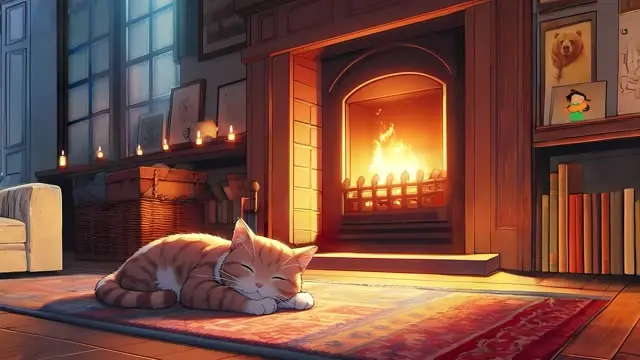
Cosy fireplace hearth loop for streaming
HD, 59 s loop
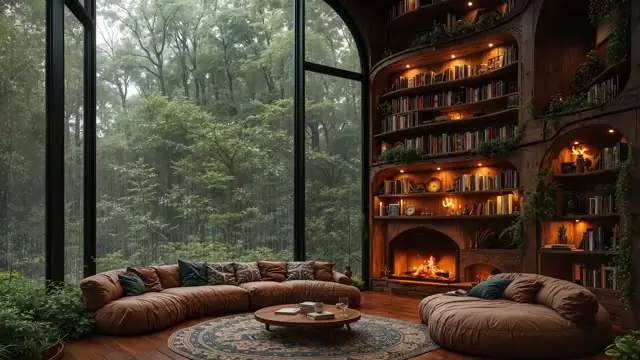
Misty forest library fireplace loop for lofi
HD, 30 s loop
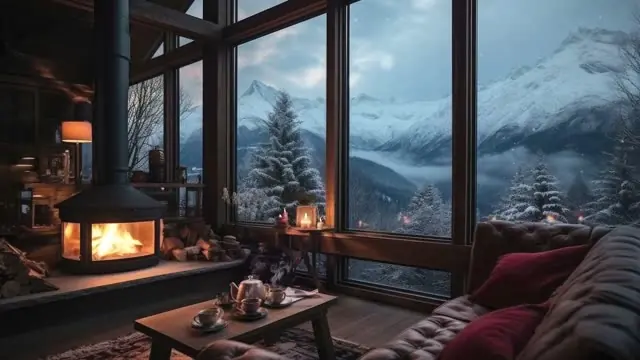
Winter cabin fireplace loop for ambient wallpaper
HD, 2 min 30 s loop

Show 8 more loopsShow fewer loops
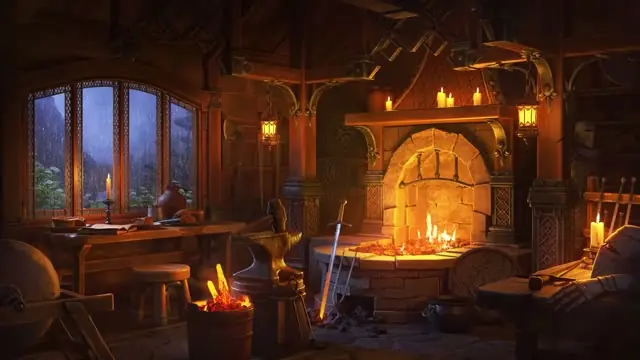
Rainy blacksmith forge loop for medieval streams
HD, 43 s loop
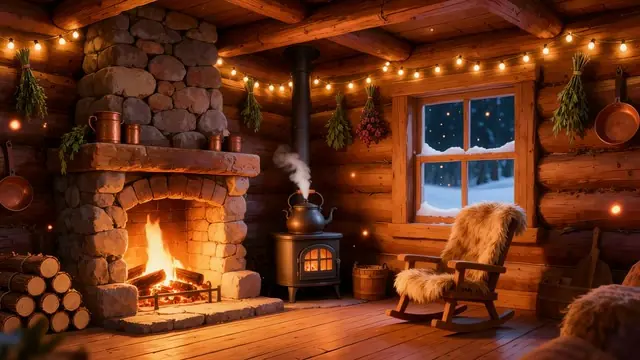
Cosy log cabin fireplace
4K, 5 s loop
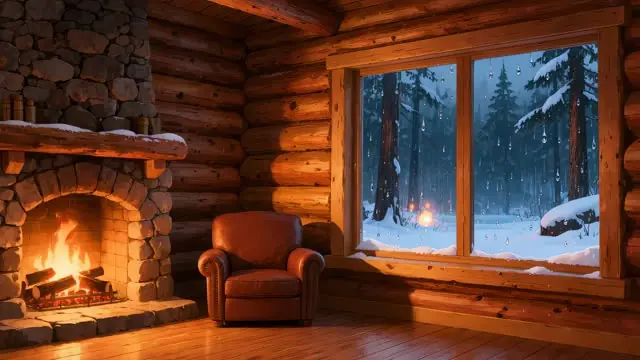
Log cabin fireplace by a snowy forest window
4K, 5 s loop
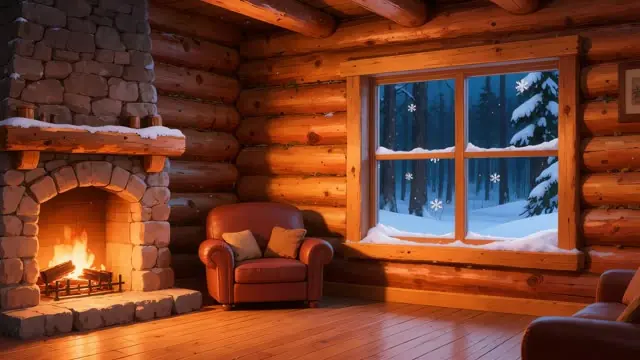
Winter cabin fireplace with falling snowflakes
4K, 5 s loop
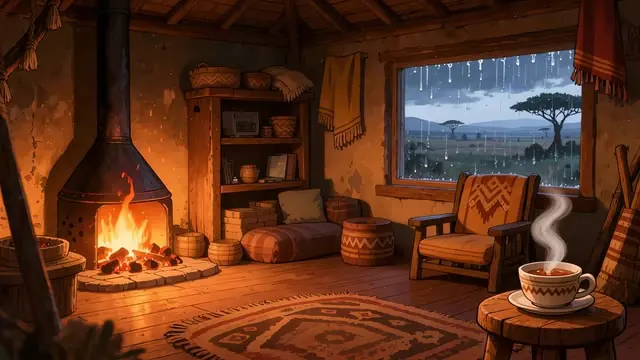
Rainy cabin hearth and tea
4K, 5 s loop
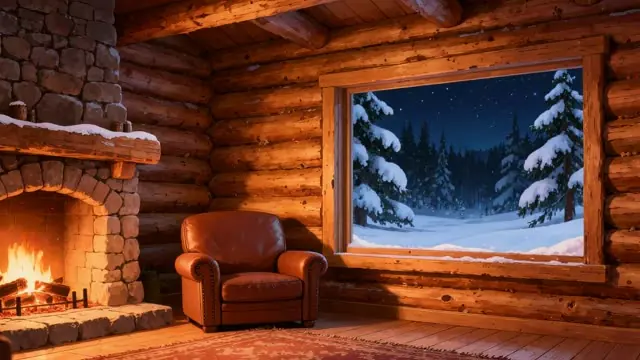
Log cabin fireplace loop for virtual meetings
HD, 5 s loop
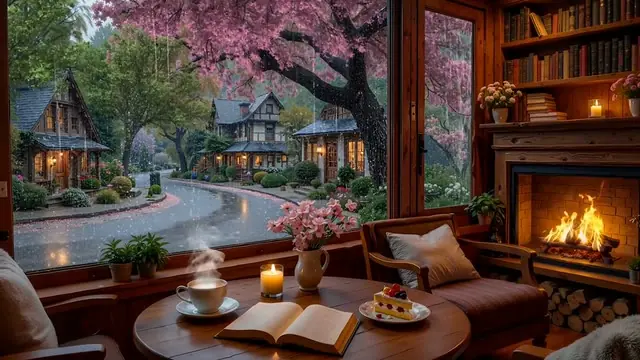
Spring village reading room fireplace loop
HD, 30 s loop
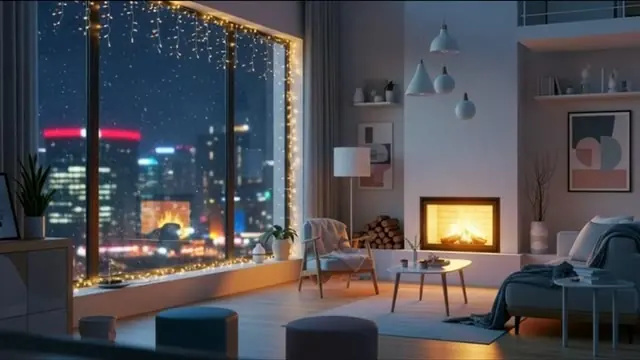
Winter city apartment and fireplace loop
HD, 30 s loop