How to set an MP4 as a live wallpaper with Lively Wallpaper on Windows
Install Lively Wallpaper from the Microsoft Store or GitHub, then drag your MP4 into the Lively window, or click Add Wallpaper and choose the file. Lively adds it to your library and plays it on a loop behind your desktop icons.
Updated
How do you set an MP4 as a wallpaper in Lively?
Drag the MP4 file into the Lively Wallpaper window. Lively imports it, adds a tile to your library and sets it as the wallpaper. From then on the video repeats behind your icons and windows until you pick something else.
Windows cannot do this alone. Its own background settings have pictures, slideshows and solid colours, not video files, so a video needs an app. Lively Wallpaper is the free one most people start with. Its developer describes it as fully open source and free with no features behind a paywall, and it is published under the GPL v3 licence.
What you need
- Windows 10 or Windows 11. The Microsoft Store version needs Windows 10 version 1809 or later. The installer from GitHub needs version 1903 or later.
- A PC around the level the project lists as its minimum: an Intel i3 or equivalent processor, 4 GB of memory and Intel HD Graphics 4600 or better.
- A landscape MP4. A 1080p clip suits most monitors and is light to play.
One special case: the N and KN editions of Windows ship without Microsoft's media components. Lively's documentation says these editions need additional codecs installed before video wallpapers will play.
Install Lively Wallpaper
There are two official sources, and both are free.
- Microsoft Store. Search the Store for Lively Wallpaper and install it. Nothing else needs setting up, and the Store keeps it up to date.
- GitHub. Download the installer from the releases page of the Lively repository and follow the prompts. The installer adds what Lively depends on.
The two versions behave the same for video wallpapers. The Store version supports only the default video player, which is the one Lively recommends anyway.
Add your MP4
- Save the MP4 in a folder you intend to keep, such as Videos or a Wallpapers folder.
- Open Lively Wallpaper. The main screen is the Library, a grid of wallpaper tiles.
- Drag the MP4 from File Explorer and drop it on the Lively window. The app's own prompt reads "Simply drag and drop files into here."
- If you would sooner browse, click Add Wallpaper, and under Choose a file click Browse and pick the MP4.
- If Lively shows a details screen for the new wallpaper, give it a title or accept what is there. The tile then appears in your Library.
- Click the tile to apply it. To switch back later, right-click any tile and choose Set as Wallpaper.
That is the whole setup. The video starts again from the first frame each time it ends, so a clip whose first and last frames match plays as one continuous scene.
Use it on more than one monitor
Lively supports multiple monitors. Its wiki calls the panel for this Screen configuration. Open it from the main window to choose how wallpapers are placed:
- select a screen to give that monitor its own wallpaper;
- Span stretches one wallpaper across all screens;
- Duplicate shows the same wallpaper on every screen.
A standard 16:9 loop looks right on one 16:9 monitor or duplicated across several. Spanning a 16:9 clip across two monitors side by side makes the picture twice as wide as it is meant to be, so use Duplicate unless you have a clip made for an ultrawide layout.
Make it fit the screen
If your monitor is not 16:9, such as an ultrawide or a 16:10 laptop panel, the clip and the screen are different shapes. Lively's wallpaper settings include fit options, among them Fill and Uniform Fill. Uniform Fill keeps the picture in proportion and crops the overflow, which is usually the better choice for scenery. Fill stretches the picture to the edges.
Stop it using power when you are not looking
A video wallpaper is only worth its cost while you can see the desktop. Lively is built around that idea.
By default, Lively pauses playback when a fullscreen application or game is running. The project describes this state as close to zero CPU and GPU use. You do not have to set anything for games.
The rest is under Settings, then Performance:
- Applications fullscreen sets what happens when a fullscreen app or game is running.
- Applications focused sets what happens when any other window has focus. Change it to Pause and the wallpaper plays only while you are looking at the bare desktop. This is the setting that makes the biggest difference on a work PC.
- When on Battery Power and When on Battery Saver let a laptop pause the wallpaper when it is unplugged or saving power.
- Display pause rule chooses whether a pause applies to every screen or only to the screen where the focused app is.
- Pause algorithm controls how Lively decides that a window is covering the desktop. Leave it on the default unless pausing misbehaves.
Lively's Performance wiki page explains each rule.
Start it with Windows
In Lively's settings, turn on Start with Windows. Lively then launches at sign-in and restores your wallpaper without you opening the app. It keeps running from the notification area of the taskbar, where its icon gives you quick controls, including Pause Wallpapers.
Sound
Lively plays a video's audio track if it has one. Our loops are silent MP4 files, so there is nothing to hear and nothing to turn off. If you use a clip with sound from another source, Lively's audio settings include a mute control and an option to play audio only when the desktop is focused.
If the video will not play
- Black screen on an N or KN edition of Windows. Install the additional media codecs that Lively's video guide mentions for those editions.
- Stutter or glitches. Lively uses GPU decoding for video. Its documentation says to turn that option off if you have stability problems. The video player options are under Settings, Wallpaper.
- Wallpaper does not move at all on an older PC. Lively's setup notes say older Windows versions may need "Animate controls and elements inside windows" enabled in the Windows Performance Options panel. High Contrast mode also disables some of what Lively needs.
- Unsupported file message. MP4 is supported. If a file from another source is refused, Lively can convert some formats before use.
The Video Guide and Getting Started pages in the Lively wiki cover players, codecs and requirements.
Lively or Wallpaper Engine?
Both play MP4 files on a loop. Lively is free and open source, and it is enough for anyone who only wants a video behind their icons. Wallpaper Engine is a paid app on Steam with a large workshop of community wallpapers and more controls. Our Wallpaper Engine guide covers it, and our shorter Windows desktop guide compares the two side by side. On a Mac, see the macOS video wallpaper guide.
Where to find wallpapers
Our live wallpapers page collects loops chosen for desktops: slow scenes that sit quietly behind icons. The cosy backgrounds page has fireplaces and warm rooms, and the rain, snow and night sky themes each fill a page. Darker scenes make desktop icons and their labels easier to read.
Frequently asked questions
Is Lively Wallpaper free?
Yes. Lively Wallpaper is free and open source under the GPL v3 licence, with no paid tier. It is available from the Microsoft Store and from the project's GitHub releases page.
Does Lively Wallpaper loop an MP4 automatically?
Yes. A video wallpaper repeats without any setting to change. For a repeat with no visible jump, choose a clip whose product page says its first and last frames match.
Does a video wallpaper slow down games?
Lively pauses the wallpaper while a fullscreen application or game is running, and the project describes CPU and GPU use in that state as close to zero. You can also set it to pause whenever any window has focus.
Can I use a different wallpaper on each monitor?
Yes. Lively supports multiple monitors. Select a screen in the Screen configuration panel and set a wallpaper for it, or use Duplicate to show the same one on all of them.
Are the loops free to use as wallpapers?
Yes. They are free downloads with a Google sign-in. The licence also covers commercial and client work, so the same file can go in a video or a stream. Reselling the raw file is the one thing ruled out. See the licence.
Official sources
Lively Wallpaper's GitHub repository lists features, requirements and downloads. Its wiki has the Getting Started, Video Guide and Performance pages this guide relies on.
Free loops for this setup
Open a loop to preview it and download the MP4 with Google sign-in.
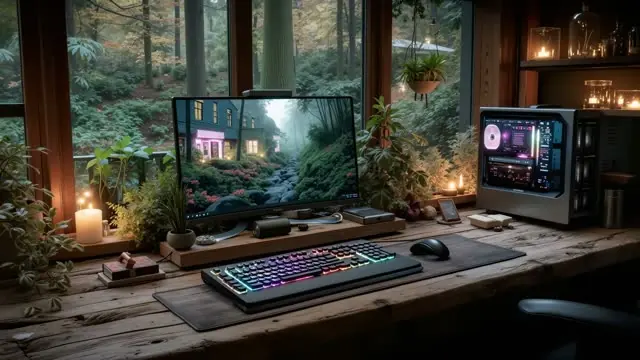
Forest window desk setup with candles loop
HD, 51 s loop
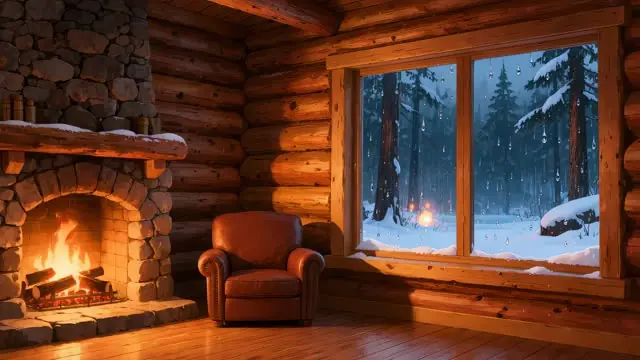
Log cabin fireplace by a snowy forest window
4K, 5 s loop
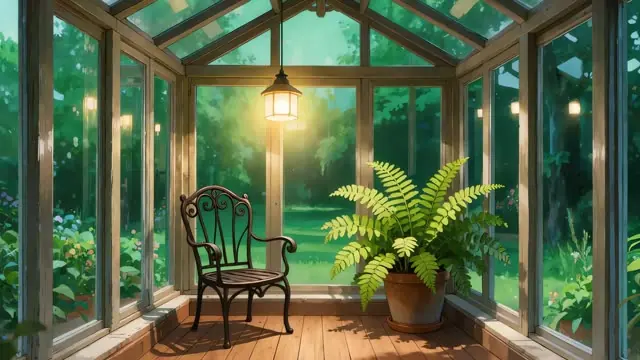
Sunroom at evening with glowing lantern
4K, 5 s loop

Candlelit reading nook loop for streamers
HD, 15 s loop
Show 8 more loopsShow fewer loops

Anime night city balcony loop for VTubers
HD, 30 s loop

Cosy fireplace hearth loop for streaming
HD, 59 s loop

Sunlit plant cafe interior loop for streaming
HD, 12 s loop

Autumn lakeside fire pit loop for cosy streams
HD, 13 s loop

Rainy forest cabin window loop for streamers
4K, 34 s loop
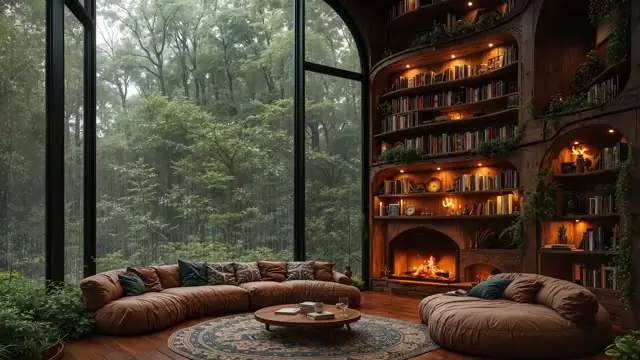
Misty forest library fireplace loop for lofi
HD, 30 s loop

Cosy cat under a dreamy night sky loop for streams
HD, 40 s loop
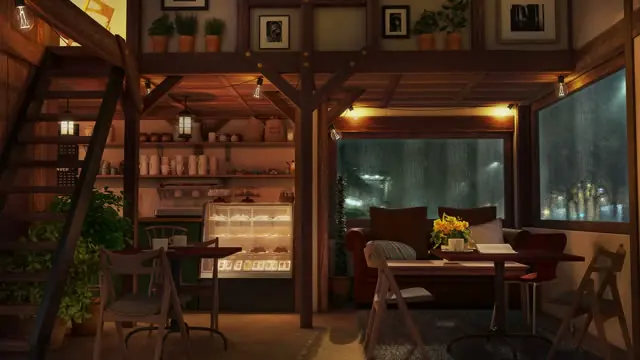
Rainy cafe interior loop background for VTubers
HD, 1 min loop