How to use a video as your background in Google Meet
Google Meet has no upload for your own video background. Its panel has blur, Google's backgrounds, generated ones and a personal image, so to show a looping MP4 you play it in OBS Studio and choose OBS Virtual Camera as your camera in Meet.
Updated

Can you upload your own video background to Google Meet?
No. Google's help page for Meet backgrounds lists what the Backgrounds panel has: blur, Google's own static and seasonal backgrounds, a generated background on some plans, and a personal background that you add yourself. The personal background is an image. There is no option to add a video file of your own.
Google did add a small set of its own moving backgrounds in 2021, starting with a classroom, a party and a forest. Those are Google's clips, and what you see in the panel today depends on your account, your device and your administrator's settings.
So there are two routes, and this guide covers both:
- A still image inside Meet. Quick, built in, and it cuts you out from your room automatically.
- A moving video through OBS Virtual Camera. OBS Studio plays the loop and sends the finished picture to Meet as if it were a webcam.
The quick route: a still image in Meet
If motion is not essential, a still frame from a loop works with Meet's own background replacement.
- Before joining, click Backgrounds and effects under your video preview. In a meeting, click Video settings next to the microphone control at the bottom.
- Open the Backgrounds tab.
- Under Blur and personal backgrounds, add your own image, then select it.
Google's page on changing your background and applying visual effects has the current steps and browser requirements. It also notes that your video may be cropped, so keep anything important away from the edges of the image.
Work and school accounts can have this switched off. Google's Workspace notes say the setting that lets people pick custom images is off by default for Education customers, and an administrator controls it everywhere else.
The video route: loop the MP4 in OBS Studio
OBS Studio is free, runs on Windows, macOS and Linux, and includes a virtual camera. You build a scene with the loop in it, and Meet receives that scene as a camera feed.
- Install OBS Studio from the official OBS website and save your MP4 in a folder you will keep.
- In OBS, create a scene. In Sources, click the plus button, choose Media Source, tick Local File, browse to the MP4 and tick Loop.
- If the clip does not fill the preview, right-click it, choose Transform, then Fit to screen.
- Decide whether you appear in the picture. To show yourself, add a Video Capture Device source for your webcam and keep it above the Media Source in the list. Resize it to a corner for a picture in picture layout.
- In the Controls dock, click Start Virtual Camera. The button changes to Stop Virtual Camera while it is running. You do not need to start streaming or recording.
The gear icon beside that button opens the virtual camera settings. There you can send the normal program output, the preview, one fixed scene or a single source. Choosing one fixed scene is handy if you use OBS for other things and do not want Meet to follow your scene changes. The OBS Virtual Camera guide explains each choice, and the Media Sources page covers the Loop setting.
Select OBS Virtual Camera in Meet
- Start the virtual camera in OBS first, then open meet.google.com in your browser.
- Click Settings, then Video.
- Under Camera, choose OBS Virtual Camera. Your OBS scene should appear in the preview beside it.
- Click Done and join your meeting.
These are the steps on Google's page for changing your computer's video and audio settings. You can also open the same settings during a call and switch cameras there.
Two things to check once you are in:
- Turn off Meet's own effects. If a blur or background is still active, Meet applies it on top of your OBS picture and may cut holes in the scene. Click Turn off visual effects on your self view and choose Remove all.
- Keep OBS open. Meet shows whatever OBS is sending. If you close OBS or stop the virtual camera, your picture freezes or goes blank.
If OBS Virtual Camera is not in the Camera list, make sure it is started, then reload the Meet tab. Check that your browser has permission to use cameras for meet.google.com. On a managed work computer, virtual cameras may be blocked; ask your administrator.
Putting yourself in front of the video
A webcam source in OBS is a plain rectangle. Placing it over the loop gives you a window on top of the scene, not a cut-out of your body with the video behind it. There are a few ways to handle that.
- Picture in picture. Shrink the webcam to a corner and let the loop fill the rest. It looks deliberate and needs no extra equipment.
- Green screen. Hang a green cloth behind you, then right-click the webcam source, open Filters and add Chroma Key. OBS removes the green and the loop shows through. Even lighting on the cloth makes the edge cleaner.
- Video only. For a waiting screen before a webinar or a break in a long workshop, send the loop with no webcam at all, then switch scenes when you are ready to appear.
Meet's automatic cut-out does not work on the OBS picture in a useful way, because Meet cannot tell which part of the finished scene is you.
Sound and the microphone
OBS Virtual Camera carries video only. Choose your usual microphone in Meet's audio settings and test it there. Our loops are silent, so a background from this site adds no sound to the call either way.
What about phones and tablets?
OBS Studio is desktop software, so the virtual camera method needs a computer. In the Meet app on Android and iOS you are limited to the effects Google provides and, where your account allows it, your own image.
Choosing a loop for a call
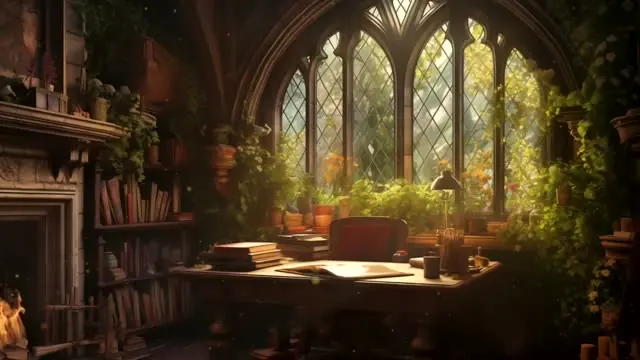
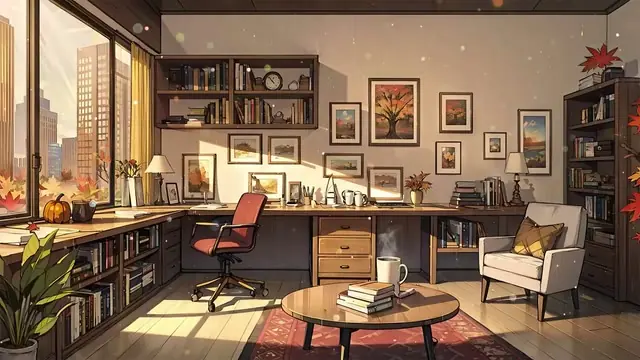
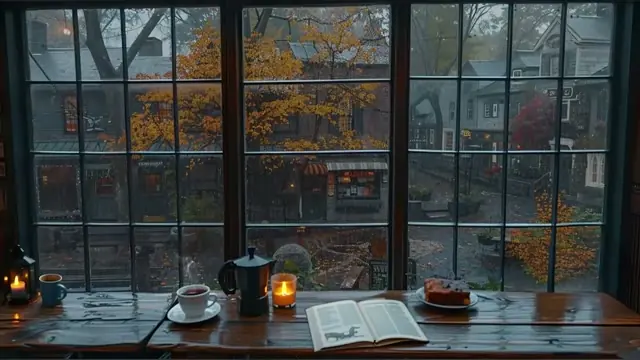
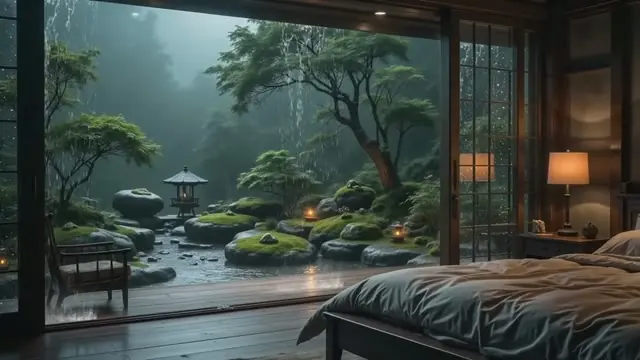
Calm scenes with little movement near the centre work best, because faces draw attention and a busy background competes with them. A 1080p landscape clip matches the OBS default canvas. Our Zoom background videos page is a ready-made set of office, desk and window scenes that suit Meet just as well, and the video backgrounds for Teams page has more in the same style. For something softer, try the rain or forest themes.
If your team also meets on other platforms: Zoom accepts a video file directly, as our Zoom video background guide explains, and Teams needs the same OBS method described in our Teams guide.
Frequently asked questions
Does Google Meet support video backgrounds?
Meet has offered some moving backgrounds made by Google, but it has no upload for a video of your own. The personal background option takes an image. To use your own MP4, send it through OBS Virtual Camera.
Is OBS Virtual Camera free to use with Meet?
Yes. OBS Studio is free, open-source software and the virtual camera is built in. Meet treats it like any other webcam once you select it under Settings, Video, Camera.
Why does my OBS picture look cropped or zoomed in Meet?
Meet may crop your video to fit other people's layouts, and Google says so on its help page. Keep text and faces away from the edges of your OBS scene, and use a 16:9 canvas such as 1920 x 1080.
Can I use Meet's blur together with the OBS background?
It is better not to. Meet's effects run on the finished OBS picture and can blur or replace parts of your scene. Remove Meet's effects and do the background work in OBS.
Can I use these loops in client meetings and paid webinars?
Yes. The loops are free with a Google sign-in and licensed for personal, commercial and client work, which includes meetings, webinars and monetised streams. Reselling the raw file is not allowed. See the licence.
Official instructions
Google: change your background and apply visual effects in Meet, change your computer's video and audio settings and the 2021 Workspace announcement of video backgrounds in Meet. OBS Project: Virtual Camera guide and Media Sources.
Free loops for this setup
Open a loop to preview it and download the MP4 with Google sign-in.