How to add a looping background to a scene in Streamlabs Desktop
In Streamlabs Desktop, click the plus button in Sources, choose Media File, click Add Source, browse to your MP4 under Local File and tick Loop, then drag the source to the bottom of the list so your camera and alerts sit on top.
Updated
How do you loop a video background in Streamlabs Desktop?
Add the video as a Media File source and tick Loop in its settings. Streamlabs Desktop then plays the file again each time it reaches the end, for as long as the scene is live. The steps are below.
Streamlabs Desktop grew out of OBS Studio, so the idea is the same as in OBS. The names are a little different. OBS calls this source a Media Source, while Streamlabs Desktop lists it as Media File.
What you need
- Streamlabs Desktop, installed and signed in.
- A landscape 16:9 MP4. A 1080p clip matches a 1920 x 1080 canvas with no scaling.
- A permanent folder for stream assets. Streamlabs Desktop reads the file from where it sits, so if you move or rename it later the source goes blank.
Add the video to a scene
- Open the Editor tab and select the scene that needs a background, or create a new scene in the Scenes panel.
- In the Sources panel, click the plus button.
- In the list of source types, select Media File. Its description reads "Add videos or sound clips to your scene."
- Click Add Source, give it a name you will recognise later, such as "Background loop", and confirm.
- In the settings that open, keep Local File ticked, click Browse and choose your MP4.
- Tick Loop.
- Close the settings. The video now plays in the editor preview.
Put it behind everything else
The Sources list is a stack. Whatever is higher in the list is drawn on top of whatever is lower.
- Drag the background source to the bottom of the Sources list.
- If the video does not fill the canvas, right-click it, choose Transform, then Fit to Screen. Stretch to Screen also fills the canvas and distorts the picture if the shapes differ, so use Fit to Screen for a 16:9 clip.
- Lock the source once it is in place, so you do not drag it by accident while arranging your camera and alerts.
Your webcam, game capture, alert box and chat box all stay above it in the list.
Choose what happens when you switch scenes
Two settings in the Media File source control how the loop behaves when you leave the scene and come back.
- Restart playback when source becomes active. When ticked, the video starts from its first frame each time you switch to the scene. That suits a countdown or an intro. For an ambient background, untick it so the scene simply carries on.
- Close file when inactive. When ticked, Streamlabs Desktop unloads the video while the scene is off screen, which saves memory and can cause a brief delay when you return. Leave it unticked for scenes you switch to often.
For a break screen you cut to many times a stream, the smoothest setup is both boxes unticked.
Keep CPU use down
A looping video has to be decoded for as long as it plays. Streamlabs Desktop has two features that reduce the cost.
Media file caching. Streamlabs built a cache for exactly this case, a media source that loops through an entire stream. The app keeps the decoded frames in memory, so it does not have to decode the same file over and over, and Streamlabs reports a clear drop in CPU use. The cache is capped at 2 GB of memory. Short loops fit inside it comfortably. A long, high-resolution file may not, and then it is decoded normally. The setting is Enable media file caching under Settings, Advanced. Streamlabs explains the design in its post on media file caching.
Hardware decoding. The Media File settings include Use hardware decoding when available, which passes the work to your graphics card. Whether it helps depends on your GPU and on what else it is doing, since a game and the stream encoder may already be using it. Record a short test with the box ticked and unticked and keep whichever plays smoothly.
Some practical habits help as well:
- Use a 1080p file on a 1080p canvas. A 4K background scaled down to 1080p costs more to decode and looks no better on stream.
- Keep one video background per scene. Several videos playing together multiply the load.
- Shorter loops use less cache memory than long ones.
Getting a clean repeat
A short clip repeats many times a minute, so the join between the last frame and the first matters more on stream than it would in a single viewing. On our product pages, the specs say "First and last frames match" when we have measured the clip's last frame against its first. Those clips repeat without a visible jump.
If you see a black flash at the loop point, test the MP4 in a normal video player first. If it repeats cleanly there, try the hardware decoding box both ways and check that media file caching is on.
Build starting soon and break screens
A looping background is the base for the scenes that cover the quiet parts of a stream.
- Duplicate your background scene, or add the same Media File source to a new scene.
- Add a text source above it with "Starting soon" or "Be right back".
- Add your chat box or a countdown above that if you use one.
- Assign a hotkey to the scene in the settings so you can cut to it without clicking.
Our starting soon and BRB screens guide walks through the layout in more detail. It is written for OBS Studio and the same structure applies here.
Sound
Our loops are silent MP4 files, so the Media File source adds nothing to your mixer. If you use a clip from elsewhere that has an audio track, it appears in the mixer when the source is added, and you can mute it there. Put stream music on its own audio source so you can lower it under your voice, and only play music you have the rights to stream.
Where to find backgrounds
Start with our animated backgrounds for OBS and stream scenes, which also work in Streamlabs Desktop because they are ordinary MP4 files. The OBS starting soon and BRB screen loops page has scenes framed with room for text. VTubers can find room and desk scenes on the VTuber backgrounds page, and the lofi study theme suits late-night and chatting streams.
Using OBS Studio as well? The matching steps are in our OBS Studio guide.
Frequently asked questions
What is the video source called in Streamlabs Desktop?
It is called Media File. You find it by clicking the plus button in the Sources panel. It is the same kind of source that OBS Studio calls Media Source, and it plays local video and audio files.
Why does my background stop after playing once?
The Loop box is not ticked. Right-click the source, choose Properties, tick Loop and close the window. The video then repeats for as long as the scene is active.
Why does my background restart every time I change scenes?
Restart playback when source becomes active is ticked in the source settings. Untick it and the background keeps its place when you leave the scene and return.
Does a looping background slow down my stream?
It adds some decoding work. Media file caching in Streamlabs Desktop reduces the CPU cost for looping files, within a 2 GB memory cap. A 1080p loop on a 1080p canvas is the lightest setup.
Can I use these loops on a monetised stream?
Yes. The loops are free to download with a Google sign-in, and the licence covers personal, commercial and client work, including monetised streams on Twitch, YouTube and Kick. You may not resell the raw file. Read the licence for the wording.
Official sources
The source and setting names in this guide come from the Streamlabs Desktop app itself, which is open source: see the source list in the Streamlabs Desktop repository. Streamlabs describes caching in Introducing Media File Caching.
Free loops for this setup
Open a loop to preview it and download the MP4 with Google sign-in.
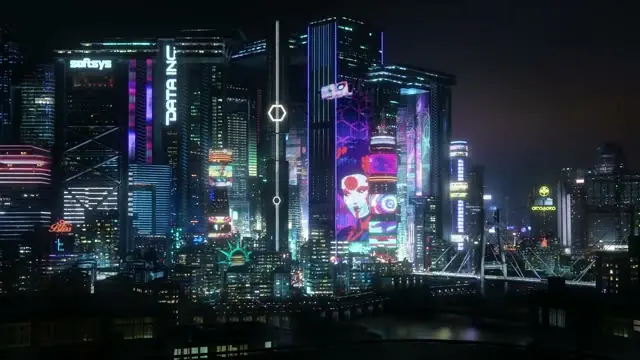
Neon cyberpunk cityscape loop for night streams
HD, 8 s loop
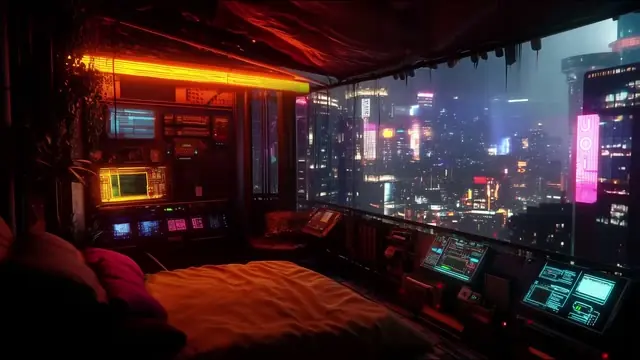
Red neon gaming den with screens stream loop
HD, 30 s loop
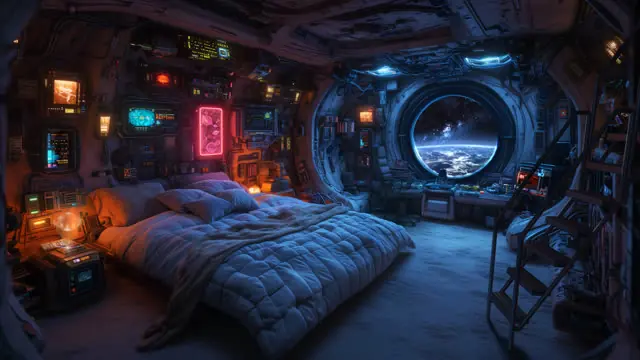
Spaceship bedroom Earth view loop for streamers
4K, 27 s loop
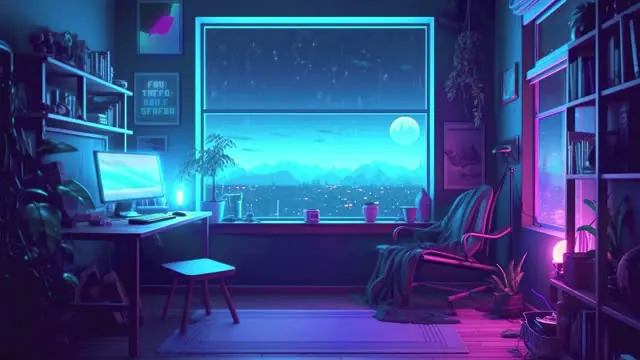
Neon gamer room city loop for Twitch streams
HD, 41 s loop
Show 8 more loopsShow fewer loops
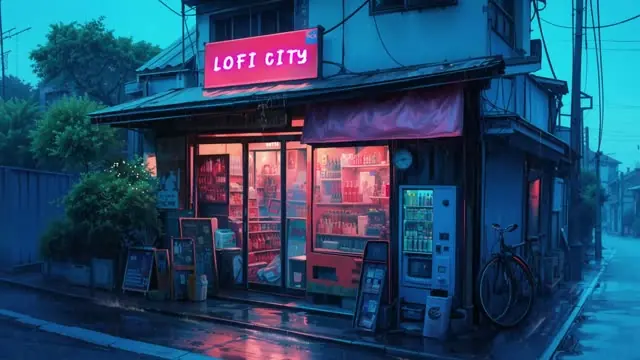
Neon city rainy street loop for lofi and streams
HD, 16 s loop
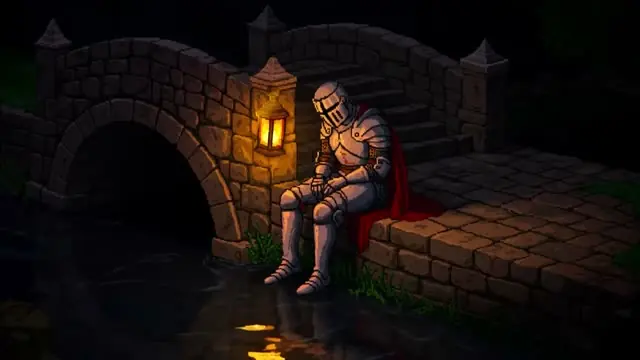
Pixel art knight on a bridge lantern loop
HD, 1 min 1 s loop
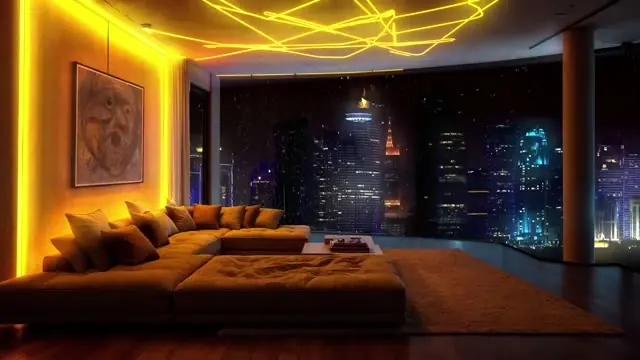
Modern penthouse city night background
HD, 58 s loop
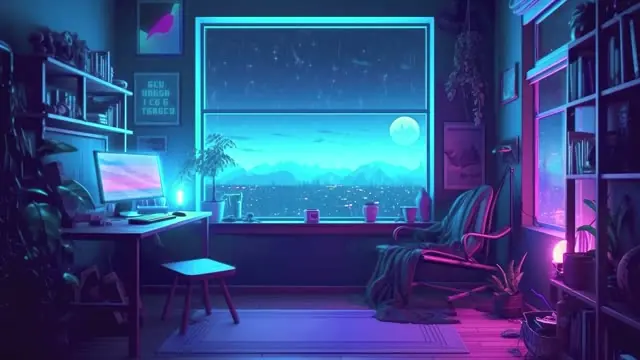
Cyberpunk rainy room loop for lofi streams
HD, 2 min 30 s loop
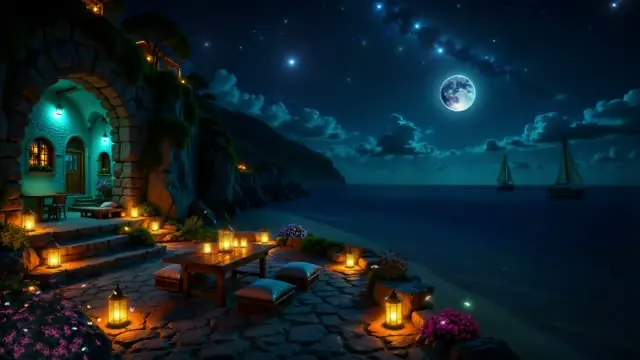
Moonlit coastal village archway loop for streamers
HD, 43 s loop
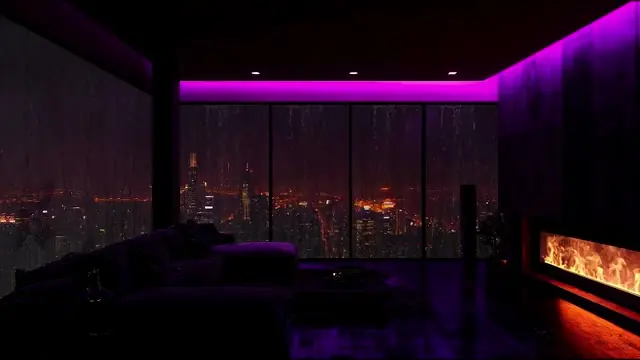
Purple neon-lit dark lounge stream background
HD, 30 s loop
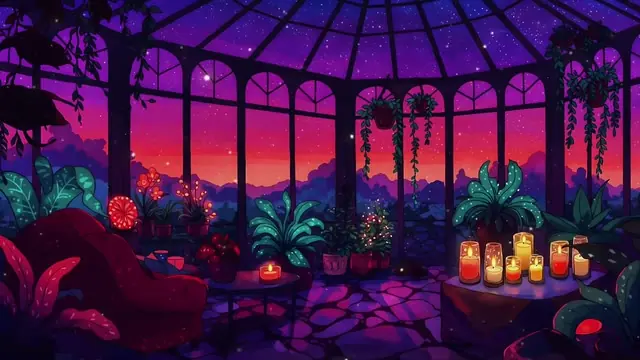
Purple neon greenhouse garden stream loop
HD, 30 s loop
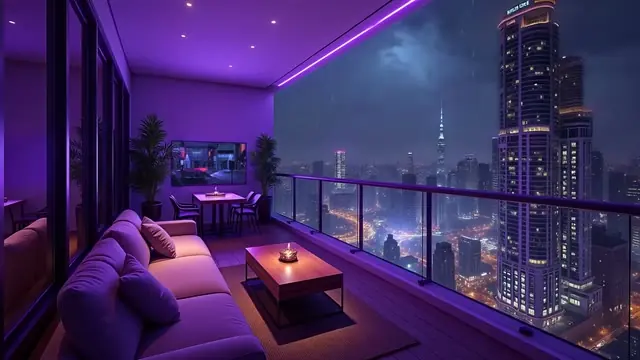
Neon skyline penthouse lounge stream loop
HD, 30 s loop