How to set a video as a live wallpaper or lock screen on iPhone and Android
Samsung Galaxy phones can set a saved video as the Lock screen or Home screen wallpaper from the wallpaper menu. iPhone cannot use a video file; on iOS 17 or later it plays a Live Photo briefly when the Lock Screen wakes. Pixel and most other Android phones need a live wallpaper app.
Updated
Can you set a video as your phone wallpaper?
It depends on the phone, and the differences are large. This list is the short version. Each line is explained below with steps.
- Samsung Galaxy: yes, built in. A video from your Gallery can be the Lock screen wallpaper or the Home screen wallpaper.
- iPhone: not a video file. A Live Photo can move for a moment on the Lock Screen, on iOS 17 or later. The Home Screen stays still.
- Google Pixel: not built in. The wallpaper picker has photos, Google's own designs and effects. Your own video needs a third-party live wallpaper app.
- Other Android phones: it varies by maker. Some include a video wallpaper option, many do not.
Whatever the phone, start with a vertical clip. A phone screen is tall, so a landscape 16:9 video loses most of its picture when it is cropped to fit. Our vertical video loops are 9:16, the shape of a phone held upright.
Samsung Galaxy: Lock screen
Samsung documents video wallpapers for Galaxy phones and tablets. You need a screen lock set up first, such as a PIN or fingerprint.
- Save the MP4 to your phone so it appears in Gallery.
- Touch and hold the Lock screen, then enter your PIN, pattern or fingerprint.
- Tap Wallpapers in the top left corner.
- Tap Gallery and select your video, then tap Done to preview it.
- Tap Trim at the bottom if you want a shorter section. Drag the slider to set the length, tap the Play icon to check it, then tap Done.
- Tap Done in the top right corner to apply it.
Lock the phone and wake it again to check the result.
Samsung Galaxy: Home screen
Samsung's instructions give a separate route for the Home screen.
- Touch and hold an empty area of the Home screen, then tap Wallpaper and style.
- Tap Change wallpapers, then Gallery, and select your video. Tap Done.
- Use Trim to adjust the length if you need to, then tap Done.
- Tap Done in the top right corner to set the video as your Home screen wallpaper.
On Galaxy Z Flip models with a cover screen, there is a third place for a video. Open Settings, tap Cover screen, then Add new, choose Gallery and pick the clip.
Menus move between One UI versions and not every model has every option. If your phone looks different, follow Samsung's wallpaper instructions, which Samsung keeps current.
iPhone: what works and what does not
An iPhone does not accept an MP4, a MOV or a GIF as wallpaper. There is no setting for it and no supported workaround that plays a video file continuously.
What Apple does support is a Live Photo on the Lock Screen. A Live Photo is a still picture with a short burst of motion attached. Apple's instructions say this needs iOS 17 or later, and that the motion plays when you wake the phone.
- Open Settings, tap Wallpaper, then tap Add New Wallpaper. You can also touch and hold the Lock Screen to reach the same gallery.
- Tap Photos, choose Live Photo, and select the Live Photo you want.
- Adjust the framing. Make sure the play button is turned on if you want the motion.
- Tap Add.
- Choose Set as Wallpaper Pair to use the picture on both screens, or Customize Home Screen to give the Home Screen something different.
The limits are worth knowing before you spend time on it:
- The motion is brief. It plays as the Lock Screen wakes and then rests on a still frame. It does not loop.
- The Home Screen shows a still picture. Apple describes the motion for the Lock Screen only.
- It has to be a real Live Photo in your Photos library. A video saved to Photos does not show up in the Live Photo list.
Apple's Lock Screen article describes the supported behaviour.
Turning a loop into a Live Photo
Because only Live Photos qualify, the route from a downloaded loop to an iPhone Lock Screen goes through a converter. Several apps on the App Store save a video clip as a Live Photo. We cannot promise the result for any of them. iOS decides whether a given Live Photo is allowed to play as wallpaper, and when it is not, the play button is unavailable and you get the still frame.
If you try it, pick a short clip with gentle movement, convert a few seconds of it, and check for the play button in the wallpaper preview before you tap Add. If motion is not available, a sharp still frame from the loop makes a good wallpaper too.
Google Pixel
Google's Pixel help describes the wallpaper picker like this: touch and hold an empty area of the Home screen, open the wallpaper and style menu, and choose your own photo or one of Google's wallpapers for the lock screen, the home screen or both. On Pixel 6 and later you can also create wallpapers with live effects, AI or emoji. See Google's Pixel wallpaper page.
None of those options takes a video file of your own. To use an MP4 on a Pixel you need a live wallpaper app from Google Play that plays a chosen video. Such an app registers itself as a live wallpaper, and you then select it through the same wallpaper picker.
Take care choosing one. Read the recent reviews, check which permissions it asks for, and prefer an app that needs access only to the video you pick. Google's wallpaper page does not recommend a particular app, and neither do we.
Other Android phones
Android lets each phone maker build its own wallpaper settings, so there is no single answer. Some makers include a video wallpaper option in their gallery or themes app. Many do not. Check your maker's support site for your model first. If nothing is built in, a live wallpaper app from Google Play is the fallback, with the same cautions as on a Pixel.
Get the clip to fit
- Shape. Use a 9:16 clip such as 1080 x 1920. It fills an upright phone screen with little or no cropping.
- The clock. The Lock screen clock and notifications cover the upper part of the picture. Scenes with their interest in the lower two thirds read better.
- Length. On Samsung phones the Trim step lets you keep the part you like. A short section of slow movement suits a screen you glance at for a second or two.
- Brightness. Dark scenes make the clock and icon labels easier to read, and on OLED screens dark pixels draw less power.
Battery and heat
A moving wallpaper uses more power than a still one, because the phone has to decode video each time the screen wakes. How much more depends on the phone and the clip. Try it for a day. If the phone runs warm or the battery drops faster than you like, shorten the clip or go back to a still image.
More loops for phones
Every upright loop we make is on the vertical video loops page. The same 9:16 files work as backgrounds for short videos, and the vertical backgrounds for TikTok, Reels and Shorts page gathers the ones that suit that. For a moving background on a computer, see our guides for Windows with Lively Wallpaper and for macOS. Our shorter phone wallpaper guide covers the same ground in brief.
Frequently asked questions
Can I set a video as my iPhone Lock Screen?
Not a video file. iPhone accepts a Live Photo as Lock Screen wallpaper on iOS 17 or later, and its motion plays briefly when the screen wakes. A downloaded MP4 has to be converted to a Live Photo first, and iOS may still show only the still frame.
Can I set a video as my Samsung Home screen, or only the Lock screen?
Samsung's instructions cover both. The Lock screen route starts by touching and holding the Lock screen. The Home screen route starts from Wallpaper and style, then Change wallpapers and Gallery. Options vary by model and One UI version.
Does a Google Pixel support video wallpapers?
Not from its own wallpaper picker, which has photos, Google's wallpapers and created effects. A third-party live wallpaper app from Google Play can play a video you choose. Check its reviews and permissions before installing.
Does the iPhone Home Screen play a Live Photo?
No. Apple describes the Live Photo motion for the Lock Screen, where it plays as the phone wakes. The Home Screen shows a still picture.
Do these wallpapers have sound?
No. Phone wallpapers play without sound, and most of our loops are silent MP4 files with no audio track in any case.
Are the vertical loops free?
Yes. They are free to download with a Google sign-in. The licence covers personal, commercial and client work, so the same clip can sit behind a monetised Short or Reel. Reselling the raw file is not allowed. See the licence.
Official instructions
Free loops for this setup
Open a loop to preview it and download the MP4 with Google sign-in.
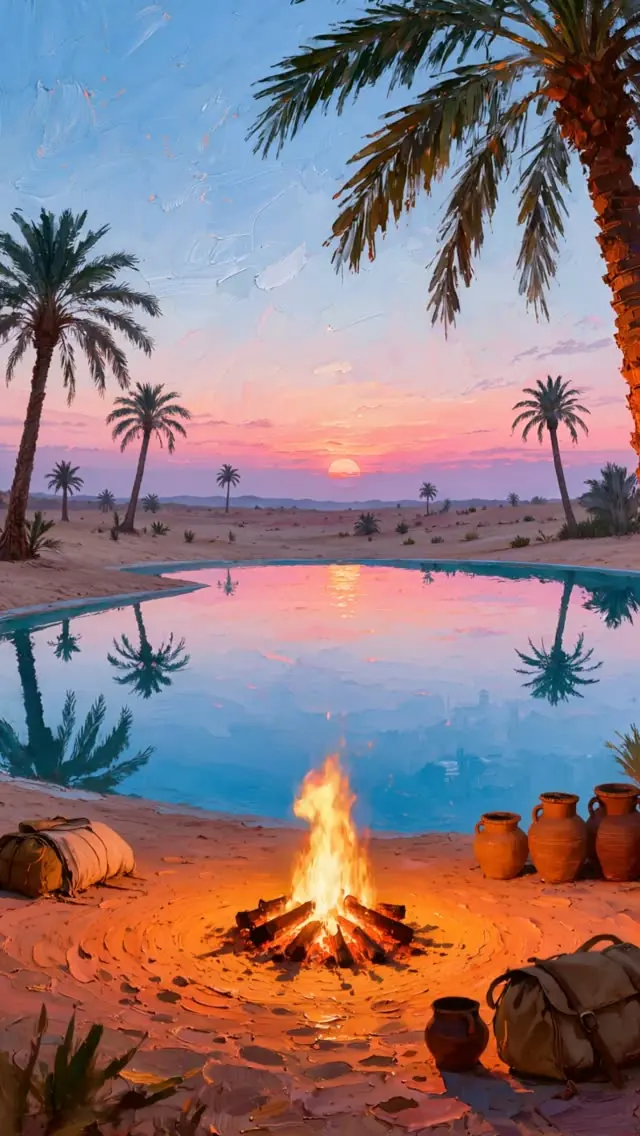
Desert oasis campfire sunset loop, vertical 1080p
HD, 10 s loop, vertical

Submarine porthole ocean view loop for study
HD, 10 s loop, vertical

Golden Buddha statue
HD, 30 s loop, vertical
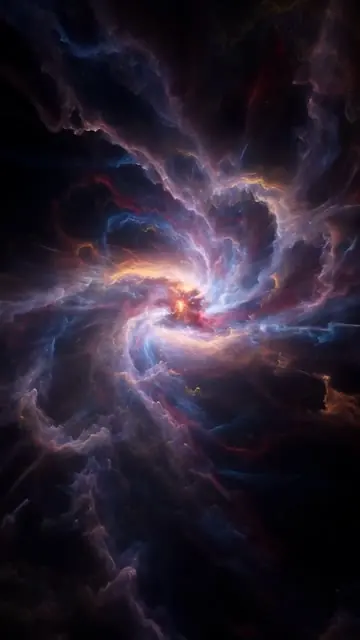
Swirling celestial nebula
HD, 6 s loop, vertical
Show 8 more loopsShow fewer loops

Glowing metallic orb
HD, 10 s loop, vertical

Aurora greenhouse at night
HD, 10 s loop, vertical

Golden bamboo forest shrine
HD, 10 s loop, vertical

Mangrove forest at sunrise
HD, 10 s loop, vertical

Vertical sunset wetland hut and fire
HD, 10 s loop, vertical
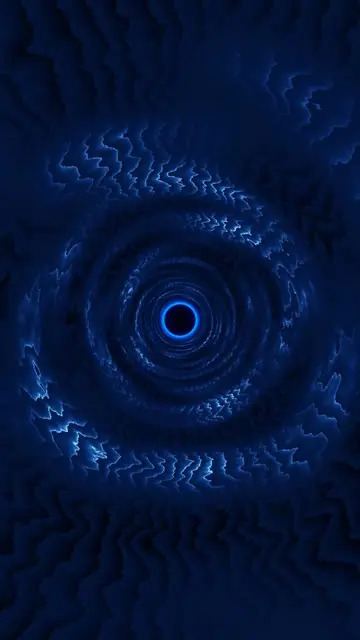
Blue abstract vortex
HD, 10 s loop, vertical

Moonlit waterfall courtyard
HD, 10 s loop, vertical

Rainy arched window reading nook
HD, 10 s loop, vertical