How to use a looping MP4 as a motion background in ProPresenter
Add the MP4 to the ProPresenter Media Bin, open its Inspector and set Playback Behavior to Loop, then click the clip to play it under your slides or drag it onto a slide so it starts with that slide.
Updated
How do you loop a motion background in ProPresenter?
Put the MP4 in the Media Bin, set it to behave as a Background that loops, and trigger it. A looping Background keeps playing while you click through lyric slides, so one clip can sit under a whole song or a whole service.
The steps below are for ProPresenter 7, the version Renewed Vision documents today. They are the same on Mac and Windows unless noted.
What you need
- ProPresenter 7 on the computer that drives your screens.
- A landscape 16:9 MP4. Renewed Vision's list of recommended files includes MP4 and MOV containers with H.264 video, which is what most downloaded loops use.
- A folder for media that stays where it is. Save the file there before you add it, so the link to it does not break later.
Our loops are silent, so nothing plays through the sound desk when the background starts.
Set the import defaults once
ProPresenter can decide how every new video behaves the moment it arrives in the Media Bin. Setting this first saves fixing each clip by hand.
- Open the ProPresenter menu and choose Settings.
- Open the Import tab.
- In the video section, set new videos to come in as a Background and set playback to Loop.
- In the scaling section, pick the default scaling for Backgrounds. The options are explained further down.
Renewed Vision's article on media import presets lists each setting on this tab. The presets apply to media you import from then on. Clips already in the bin keep the settings they have.
Add the MP4 to the Media Bin
- Show the Media Bin at the bottom of the main window if it is hidden.
- Choose the playlist in the bin where the clip should live, or make a new one with the plus icon at the bottom left of the bin. A playlist per series or season keeps a large library easy to scan.
- Drag the MP4 from Finder or File Explorer into the bin. A thumbnail appears when the import finishes.
On Windows, AVG AntiVirus has been known to block ProPresenter's imports, so a file you drag in never shows up. Renewed Vision's fix for blocked media imports covers allowing the app.
Set one clip to loop in the Inspector
If a clip was imported before you changed the defaults, or you want one clip to behave differently, change it in the Media Inspector.
- Right-click the clip in the Media Bin and choose Inspector.
- On the Properties tab, find Playback Behavior and choose Loop. Loop plays the file again and again until you clear the media or trigger a different clip. Stop plays it once.
- If the clip's last frame does not match its first, tick Soft Loop. ProPresenter then dissolves back to the start in place of a hard cut.
- Set Scaling on the same tab if the clip does not fill your screen the way you want.
The same Inspector opens from a media item inside a presentation, so you can make one use of a clip behave differently from the copy in the bin. Renewed Vision describes every control in What is the Media Inspector.
Play it under your slides
There are two ways to start the background, and most teams use both.
Click it in the Media Bin. The clip starts on the media layer, under whatever slide is live. Click through your lyrics as normal. The background carries on underneath until you clear it or click another clip.
Attach it to a slide. Drag the clip from the Media Bin onto a slide in the slide view. ProPresenter attaches it to that slide as an Action, so clicking the slide starts the background and shows the words together. Put it on the first slide of a song and the operator has one less thing to remember.
From version 7.3 you can also drag a whole Media Bin playlist onto a slide, which is useful for a run of announcement clips. See triggering media playlists from slide actions.
Why the background does or does not restart
The Inspector has a setting called Re-Trigger Modifications. On Automatic, which is the starting value, ProPresenter follows these rules:
- A Background set to Loop does not restart when it is triggered again. If the same looping clip is attached to every slide of a song, it keeps running without a jump as you move from verse to chorus.
- A Background set to Stop restarts each time.
- A Foreground always restarts.
So if your background jumps back to its first frame every time you change slide, check two things: that the clip is a Background and not a Foreground, and that Playback Behavior is Loop. You can also force the behaviour by setting Re-Trigger Modifications to Never or Always.
Choose the right scaling
Scaling decides what happens when the clip and the screen are different shapes. Renewed Vision's media scaling options article describes four:
- Scale to Fit shows the whole clip and adds black bars where the shapes differ.
- Scale to Fill fills the screen with no bars and crops the top and bottom, or the sides, to do it.
- Stretch to Fill fills the screen without cropping and distorts the picture if the shapes differ. Backgrounds use this by default.
- Scale + Blur fills the gaps with a blurred copy of the clip. It needs ProPresenter 7.16 or later and an active Pro+ agreement.
A 1080p loop on a 16:9 projector looks the same with any of them. The choice matters on wide or stacked LED walls. There, Scale to Fill keeps the picture in proportion and loses some of the edges, which suits clouds, light rays and other scenes with no single subject.
Keep the words easy to read
A background is there to sit behind lyrics, so judge it with text on top.
- Pick slow scenes with even brightness. Fast movement behind a line of text pulls the eye away from it.
- Give lyric text an outline or a shadow in your theme, so it holds up when a bright patch of the clip passes behind it.
- Check from the back of the room on the real screen. A projector in a bright room shows less contrast than your laptop does.
For a wider look at what suits a sanctuary, and for EasyWorship and OBS steps, see our worship backgrounds guide.
Where to find loops
Our worship backgrounds and church screen loops page collects slow, calm scenes chosen for use behind text. For conferences and youth nights, the event screen backgrounds page has stage-sized scenes with more energy. The night sky and sunset themes also work well under white lyrics.
If you stream the service, the same file can sit behind your lower thirds. Our OBS Studio guide shows how to loop it there.
Frequently asked questions
What video format does ProPresenter need for a motion background?
Renewed Vision recommends MP4 or MOV files using H.264, H.265, ProRes or HAP video. A standard 1080p MP4 loop is on that list and needs no conversion. If a file from another source gives trouble, Renewed Vision suggests testing it and contacting their support.
Why does my background restart on every slide?
The clip is probably set as a Foreground, or its Playback Behavior is Stop. Open the Inspector, set Playback Behavior to Loop and make sure the clip is a Background. With Re-Trigger Modifications on Automatic, a looping Background keeps playing when the next slide triggers it again.
What does Soft Loop do?
Soft Loop dissolves from the end of the clip back to its start, so a clip whose last and first frames differ repeats without a hard cut. Clips whose product page says the first and last frames match do not need it.
Can a church use these loops in services and on its livestream?
Yes. The loops are free to download with a Google sign-in, and the licence covers personal, commercial and client work, including monetised streams. You may not resell the raw file. The licence has the full wording.
Do the backgrounds have sound?
Most of our loops are silent MP4 files with no audio track, so they add nothing to your mix. Run music from your usual audio source.
Official instructions
This guide follows Renewed Vision's own support articles: media import presets, the Media Inspector, media scaling options and file types that work with ProPresenter.
Free loops for this setup
Open a loop to preview it and download the MP4 with Google sign-in.
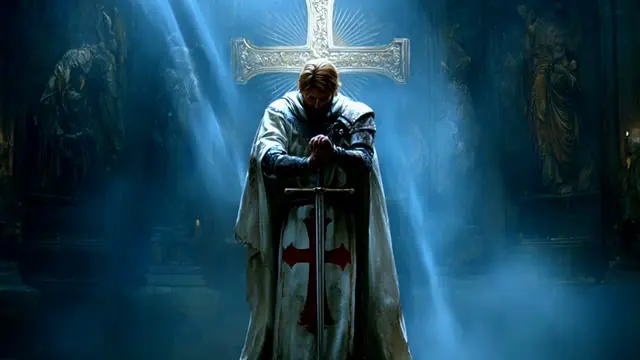
Blue cathedral figure
HD, 30 s loop
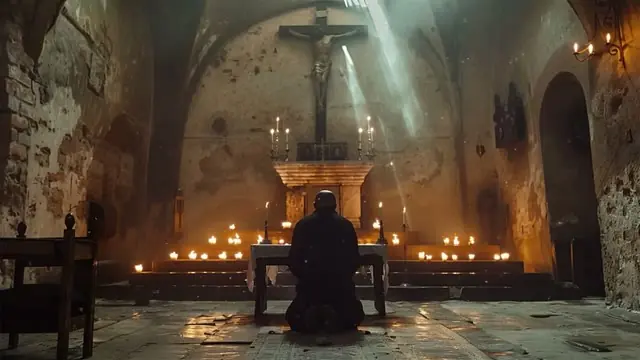
Amber candlelit chapel altar cross event loop
HD, 30 s loop
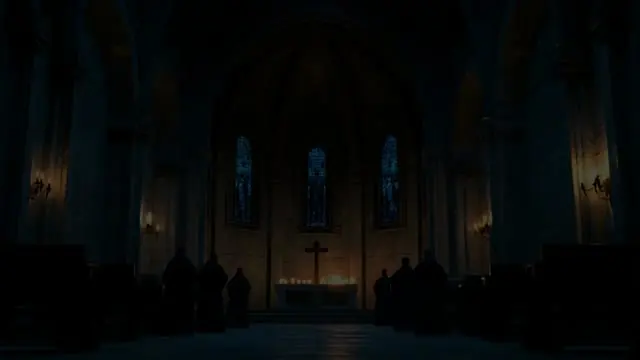
Dark candlelit cathedral
HD, 30 s loop
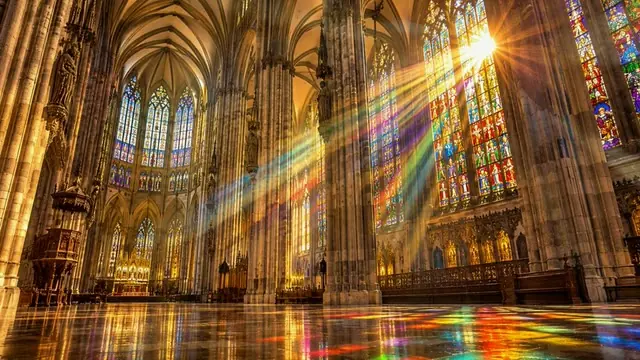
Sunbeams in a Gothic cathedral
HD, 30 s loop
Show 8 more loopsShow fewer loops
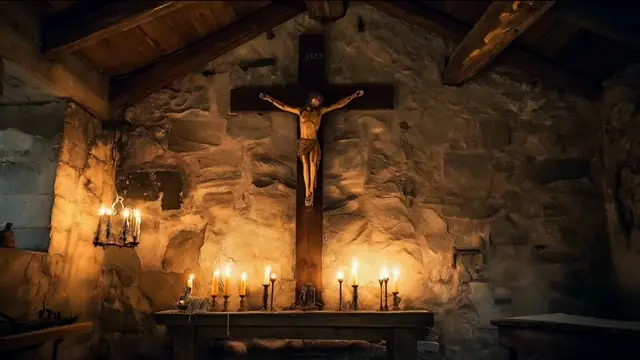
Candlelit stone chapel
HD, 30 s loop
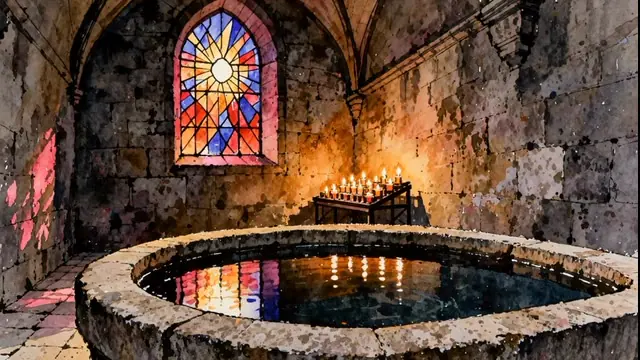
Stained glass pool and candles
HD, 10 s loop

Candlelit reading nook loop for streamers
HD, 15 s loop

Cosy fireplace hearth loop for streaming
HD, 59 s loop

Rainy dark academia window loop for studying
HD, 2 min 43 s loop
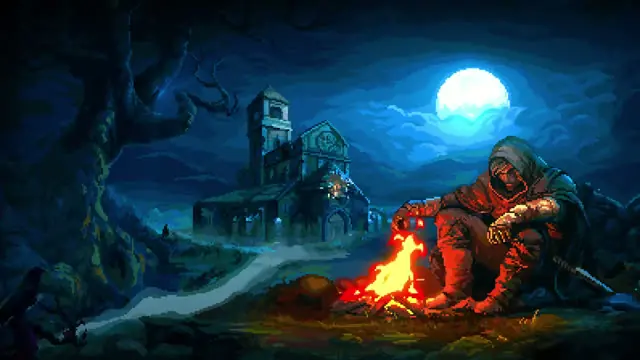
Moonlit campfire at a ruined church loop
HD, 44 s loop

Black cat by the window animated background for streaming
HD, 20 s loop

Cosy bedroom library
HD, 53 s loop